WhatsApp Templates
Sync, create, and manage WhatsApp Business message templates for campaigns and automation.
WhatsApp Templates are the pre-approved message formats from WhatsApp Business that you send in outbound messages and campaigns. They're shared across your organization.
Open the Templates page
Go to Settings → Presets → WhatsApp Templates.
You'll see:
- Top actions
- Go to Campaigns — open the Campaigns page to use templates in a WhatsApp campaign.
- Create Template — open the template builder.
- Template list
- Search by name, category, status, or language.
- Channel filter — All channels or a specific WhatsApp Business account.
- Table columns:
- Name — snake_case template name.
- Business Account — the WhatsApp Business Account the template lives in.
- Category — Marketing or Utility.
- Status — synced from WhatsApp:
APPROVED,PENDING, orREJECTED, plus other states WhatsApp can set such asPAUSED,DISABLED,IN_APPEAL, orLIMIT_EXCEEDED. - Language — template language (for example
en_US,ar_AE). - Created At — when the template was created.
- Actions — a ⋯ menu with Preview, which opens a full WhatsApp preview drawer.
Select rows with the checkboxes to bulk delete.
Sync templates from WhatsApp
When you open WhatsApp Templates, Cloodot syncs once from your connected WhatsApp Business accounts. To pull the latest at any time, click Sync templates (optionally filtered to a specific WhatsApp channel).
WhatsApp owns template statuses:
- APPROVED — ready for campaigns and outbound messages.
- PENDING — under review; wait for WhatsApp's decision.
- REJECTED — rejected by WhatsApp; create a new version that follows their policies.
WhatsApp may also set other statuses over time — PAUSED, DISABLED, IN_APPEAL, or LIMIT_EXCEEDED. Cloodot reflects them as soon as they change.
Create a template without leaving your work
You don't have to go to Settings to make a template. Wherever you pick one, you can make one on the spot:
- In a workflow — open a Send WhatsApp Template step and click New template next to the Template field.
- In a campaign — on the template step, click the + button next to the search box (or Create template if you don't have any yet).
The template builder slides in from the right, over what you were doing. It's the same builder as in Settings, with the same steps and preview. When you click Create Template, the drawer closes and your new template is already picked — the workflow or campaign you were building is right where you left it.
What happens next, in plain words:
- You create it. It goes to WhatsApp for review straight away.
- WhatsApp reviews it. This usually takes a few minutes, sometimes up to a day. Its status shows as In review (
PENDING). - It's approved. Now it can be sent. Anything that was waiting for it starts on its own:
- a workflow you already published switches on by itself, and
- a campaign set to wait for it starts sending.
If WhatsApp rejects it, nothing is sent. You'll see the reason next to the template — fix the wording and make a new one.
Create a new template
Go to Settings → Presets → WhatsApp Templates → Create Template. The builder is a two-step wizard:
- Setup Template — basic info
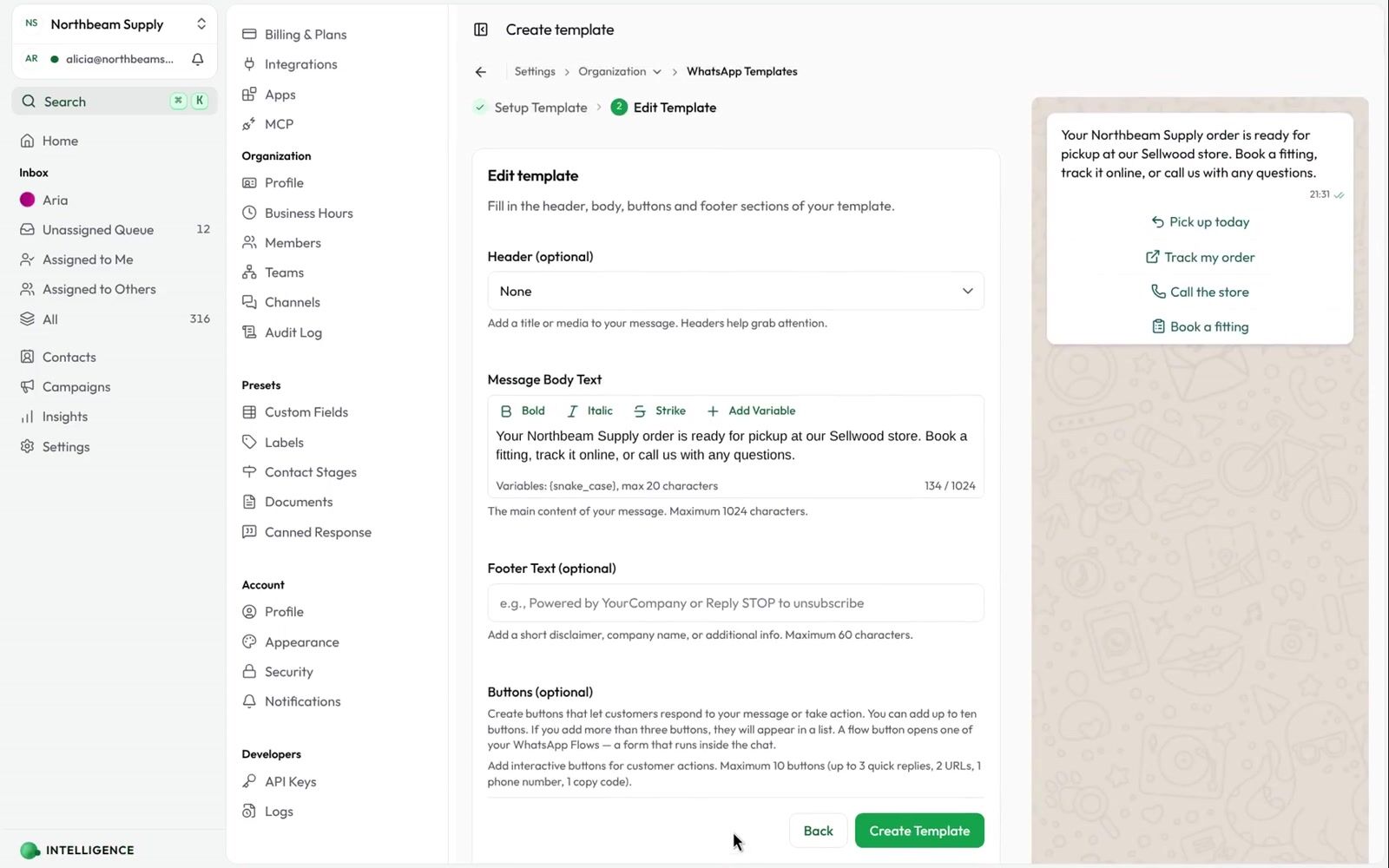
- Edit Template — header, body, footer, buttons
Step 1: Setup Template
Defines how the template registers with WhatsApp.
- Template name
- Must be snake_case — lowercase letters, numbers, and underscores only.
- Cloodot strips spaces and invalid characters automatically.
- Examples —
order_update,service_pricing_2025.
- Category
- Marketing — promotions, announcements, offers, campaigns.
- Utility — updates on existing orders, accounts, or transactions.
- Type (sub-category)
- Marketing — Custom (single message) or Media Carousel (image/video cards, e.g. for product catalogs).
- Utility — Custom only.
- Language — pick the language that matches your copy (English, Arabic, Hindi, etc.).
When you're done here, move on to Edit Template to design the content.
Step 2: Edit Template (components)
For Custom templates:
-
Header (optional) — pick a type: None, Text, Image, Video, or Document. The matching field appears below.
- Text — up to 60 characters. You can use
{{variable_name}}(snake_case) and must provide a sample value for review. - Image / Video / Document — an upload field appears.
- None — no header field.
- Text — up to 60 characters. You can use
-
Message body text (required)
- The main text the customer reads.
- Supports WhatsApp markdown (
*bold*,_italic_,~strikethrough~). - Use variables like
{{name}}or{{order_id}}(snake_case) and provide sample values for WhatsApp review.
-
Footer (optional)
- One short line below the body, e.g. "Reply STOP to unsubscribe."
- Max 60 characters.
-
Buttons (optional, up to 10 total)
- Quick Reply — as many as you like, up to the 10-button total.
- Visit Website (URL) — max 2 buttons.
- Call Phone Number — max 1 button.
- Copy Code — max 1 button. Set:
- Button text — fixed as "Copy offer code".
- Offer code — the code copied on tap (max 15 characters, e.g.
SAVE20).
- Button text must be unique within the template.
- Open a Flow — max 1 button, and it can't share a template with a Copy Code button. Pick one of your WhatsApp Flows — the native in-chat form that opens when the customer taps it. WhatsApp only accepts registered flows on a template, so if the flow isn't registered yet, or has been edited since, register it right from the picker. A flow with errors has to be fixed in the workbench first.
Create a Media Carousel template
If you picked Media Carousel in Step 1, the Edit Template step looks like this:
-
Message body text (required)
- Appears above the carousel.
- Supports WhatsApp markdown.
- Use snake_case variables like
{{name}}or{{order_id}}.
-
Media type and buttons
- Media type — Image or Video (applies to all cards).
- Buttons — button types sync across every card:
- Quick Reply — max 2
- Visit Website (URL) — max 1
- Call Phone Number — max 1
- Add up to 2 buttons total; at least 1 is required.
- Per button type:
- Quick Reply — enter the reply text (e.g. "Yes, I'm interested").
- URL Button — enter button text, choose Static or Dynamic, then the URL. For Dynamic, add one variable at the end (e.g.
https://www.example.com/{{name}}) and provide a sample URL for review. - Phone Number Button — enter button text, choose country code, and enter the phone number.
-
Customize carousel cards
- Header type and button types sync across every card — change them on one card and it applies to all.
- For each card:
- Upload Image/Video — the media file for this card.
- Card body text — supports markdown and variables.
- Button data — fill in the specific text, URLs, or phone numbers for buttons on this card.
- The Add Card button shows the count (e.g. "Add Card (2/10)"). Minimum 2 cards, maximum 10.
-
Bottom actions
- Back — return to Step 1.
- Create Template — submit.
-
Confirmation dialog
- Title — "Create WhatsApp Template"
- Message — "Are you sure you want to create this template? Once created, it will be submitted to WhatsApp for review."
- Actions — Cancel or Create Template.
Preview a template
- Click the Preview icon in the Actions column.
- A drawer opens with a full WhatsApp-style preview — header media or text, body with variables highlighted, footer, and buttons or carousel cards.
Use this to spot-check your template before sending it in a campaign.
Delete templates
- Tick the checkboxes for the templates you no longer need.
- The bottom action bar shows how many are selected.
- Click Delete and confirm.
After deletion, Cloodot removes the templates from the list and they're no longer available for new campaigns or automations. Messages already sent aren't affected.