WhatsApp Flows
Design a WhatsApp Flow with AI, send it on a template, read customer submissions in the Inbox, and trigger workflows from the answers.
WhatsApp Flows are native, multi-screen forms that open right inside WhatsApp — booking pickers, lead forms, feedback surveys — no browser, no external link. The customer taps a button on your message, fills in the screens, hits submit, and the answers come back into the same chat.
Cloodot works with flows end to end:
- Build a flow from a plain-English description, test it in a live preview, and register it with WhatsApp — without leaving Cloodot.
- Send any approved template that has a Flow button — in one-off messages, campaigns, workflow actions, and the developer API.
- Read each completed submission in the Inbox, field by field.
- Automate on the answers with the WhatsApp Flow Submitted workflow trigger.
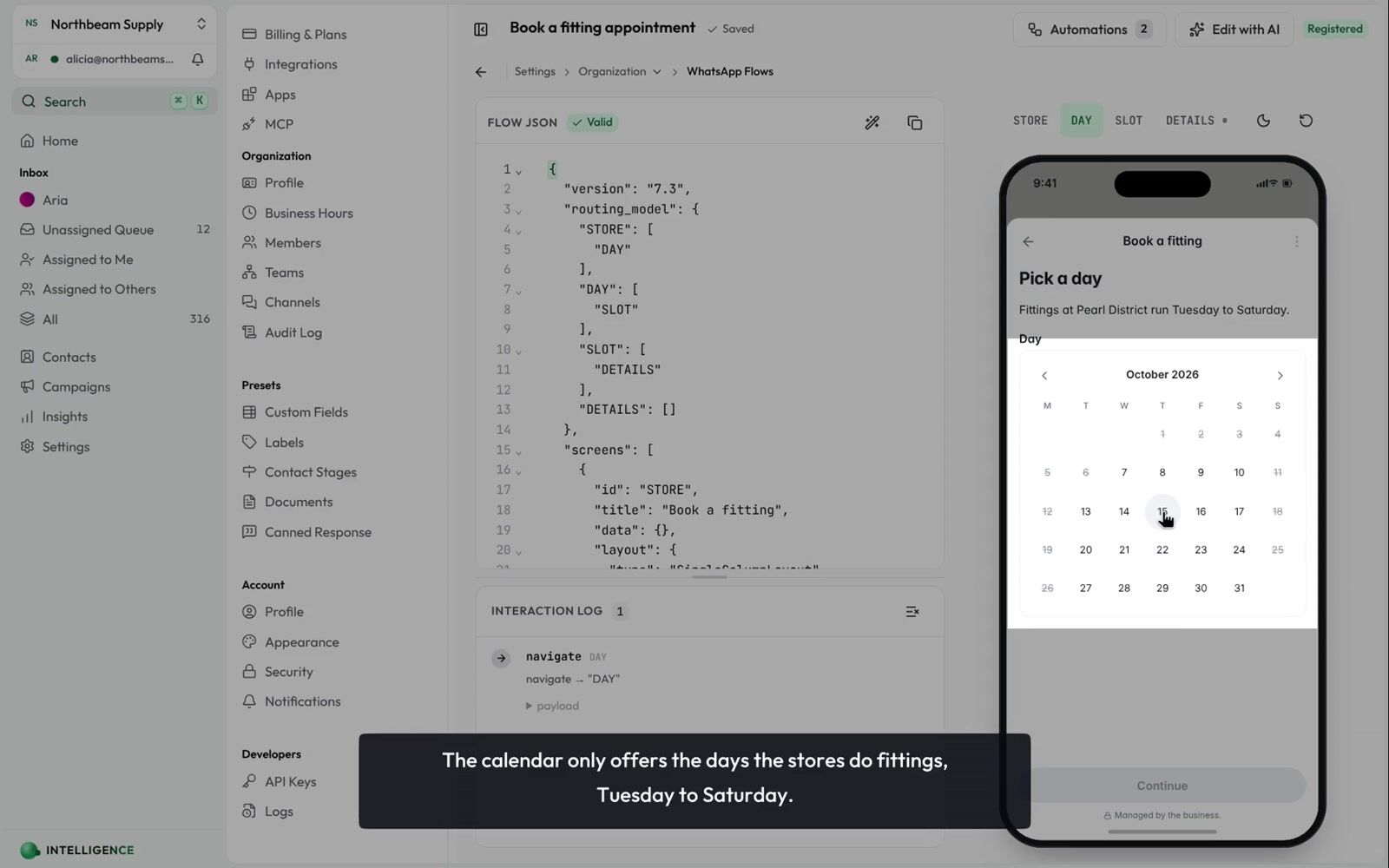
You can also design a flow in WhatsApp Manager → Flows (Meta's own Flow Builder) if you prefer. Either way, a flow only becomes usable once it is registered with WhatsApp and attached to an approved message template as a Flow button — from then on the template behaves like any other.
Build a flow with AI
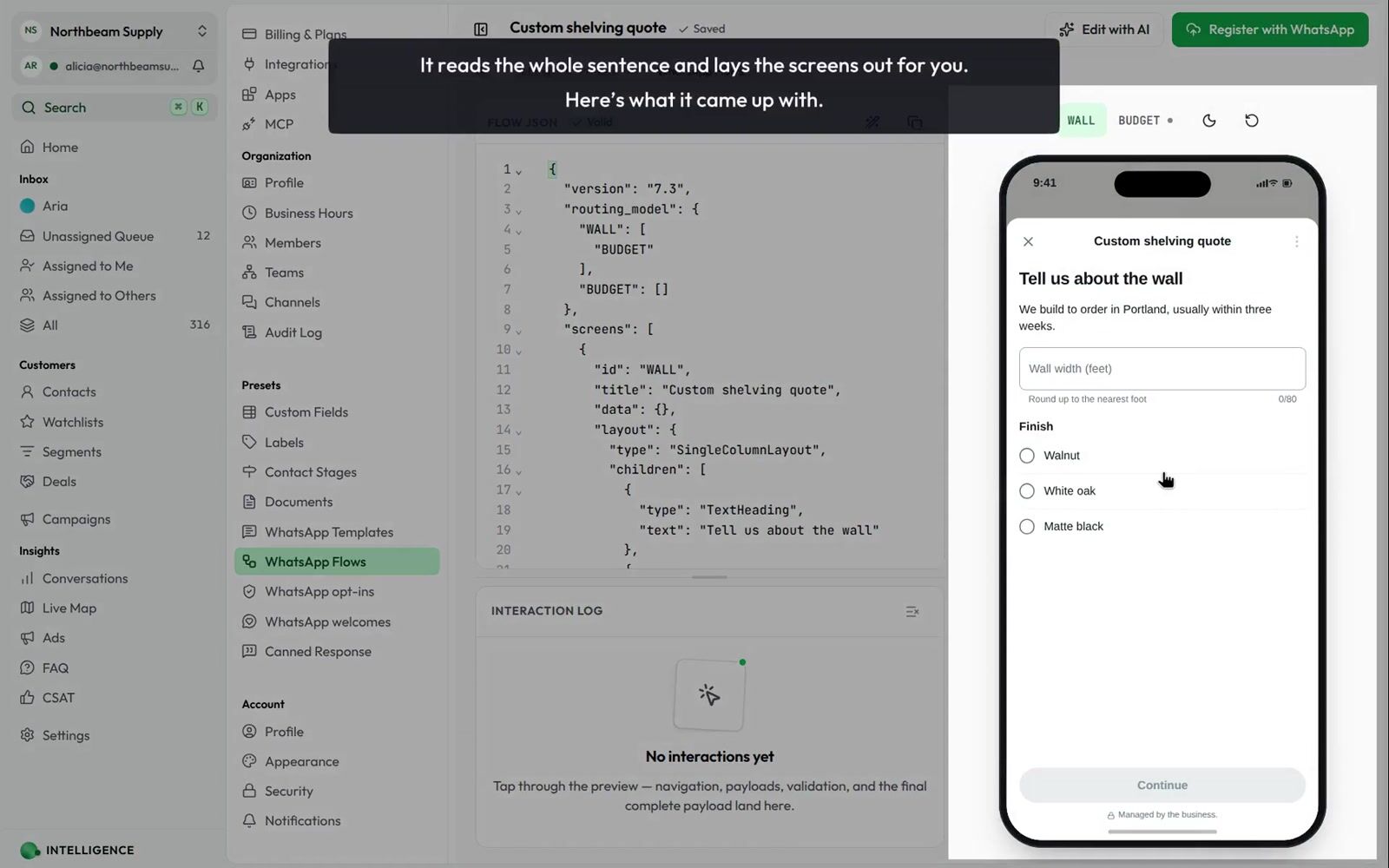
Go to Settings → Presets → WhatsApp Flows. The page lists every flow the workspace has designed and whether WhatsApp has a copy of each one.
Describe what you want to collect
New flow opens two ways in: start from a template, or describe the form in your own words. Be specific about the fields — the AI writes the screens, the labels and the validation rules from that one sentence, so the more you spell out, the less there is to correct afterwards.
Test it in the preview
The workbench opens with the flow already running in a WhatsApp-faithful preview beside it. Fill it in the way a customer would: required fields are enforced exactly as WhatsApp enforces them, and every step you take is written to the interaction log underneath, so you can see the payload your workflows would receive.
Change it, by hand or by asking
The Flow JSON sits in an editor on the left, with errors flagged as you type. If you would rather not touch it, Edit with AI takes an instruction — "add an email field, and make party size a dropdown from 1 to 8" — and rewrites the flow in place.
Register it with WhatsApp
There is no save button: edits are written as you make them, and the read-out beside the flow's name says whether they have landed. Saving is not the same as publishing, though. Register with WhatsApp uploads the flow to your WhatsApp Business Account, which is what makes it selectable on a template. Change the flow later and the list marks it Edited since registering until you register it again.
A flow with validation errors can't be registered. The count sits above the editor, and the Register with WhatsApp button stays disabled until it reaches zero.
Send a flow template
There is nothing to configure. A template with a Flow button works everywhere templates work:
- One-off — New message from the Inbox: pick the template, fill the usual header and body variables (the Flow button needs none), and send.
- Campaigns — pick the template in the campaign builder; every recipient gets the same Flow button. See Campaigns.
- Workflows — the Send WhatsApp Template action sends flow templates too.
- Developer API — template sends through the public API include the Flow button automatically.
In previews the Flow button shows with a form icon. On the customer's phone, tapping it opens the flow full-screen inside WhatsApp.
Cloodot stamps every flow send with a unique token, which is how a later submission is traced back to the campaign or template that produced it (see the trigger variables below).
Read submissions in the Inbox
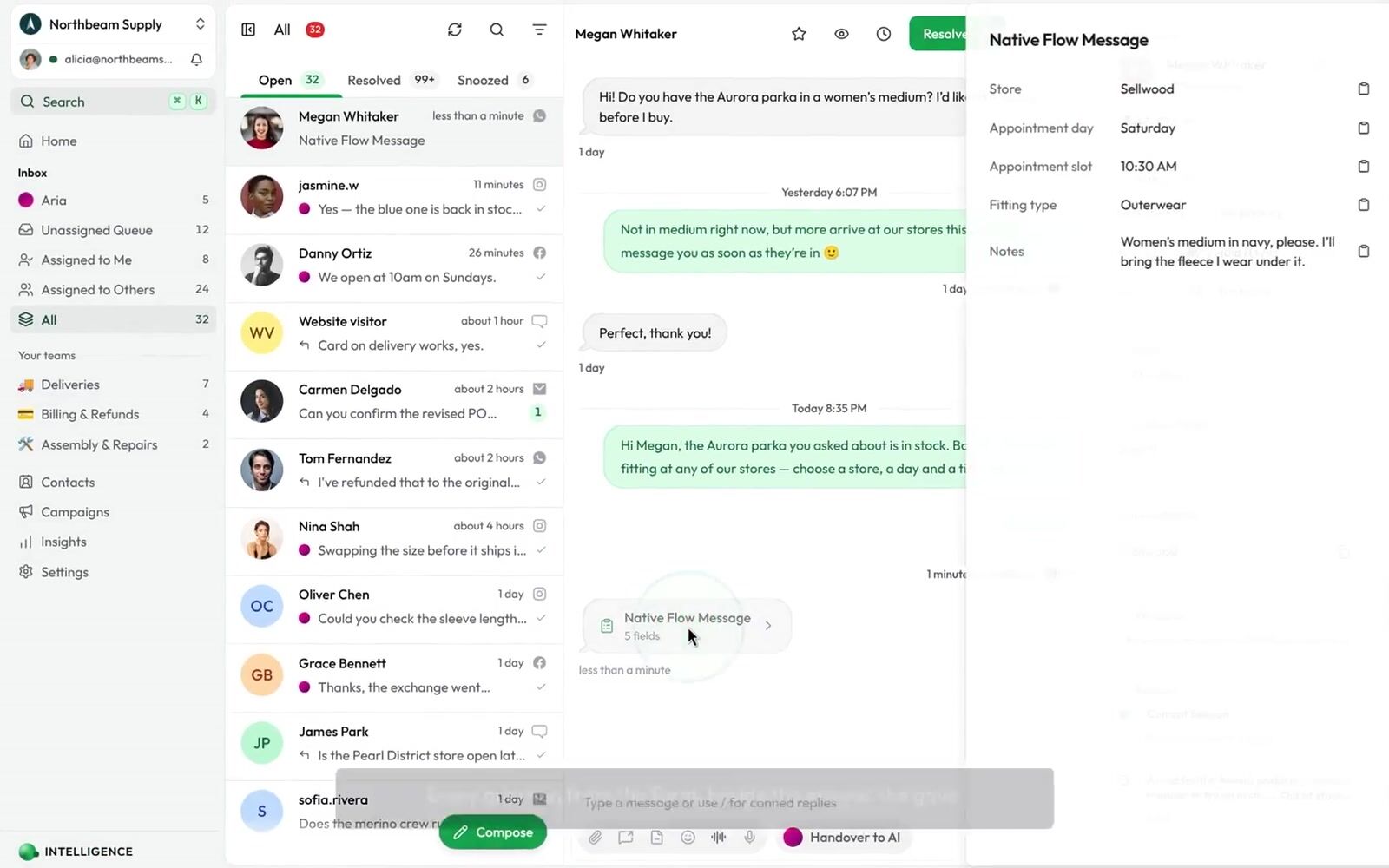
A completed flow arrives in the conversation as a Native Flow Message chip showing how many fields were submitted. Click it to open a drawer with every question and answer, ready to copy.
The AI agent can use the submitted answers too, in its replies and extractions.
Trigger workflows from submissions
The WhatsApp Flow Submitted trigger fires every time a customer completes a flow in a conversation — whichever surface sent it. Use it to route, label, notify, or write the answers into contact fields.
Trigger variables
| Variable | What it holds |
|---|---|
{{trigger.flowValues.<field>}} | A submitted answer, by its field name from the flow — e.g. {{trigger.flowValues.km_range}}. Multi-select answers are comma-joined. |
{{trigger.flowSource}} | Where the flow was sent from: oneoff, campaign, workflow, sample, api — or unknown when the flow wasn't sent through Cloodot. |
{{trigger.campaignId}} | The campaign that sent the flow, for campaign sends. |
{{trigger.templateName}} | The template whose Flow button opened the flow, when known. |
{{trigger.flowToken}} | The raw send token, if you need it for external correlation. |
The standard conversation context — {{trigger.conversationId}}, {{trigger.contactName}}, {{trigger.contactPhone}}, and friends — is there as well.
Match on the answers
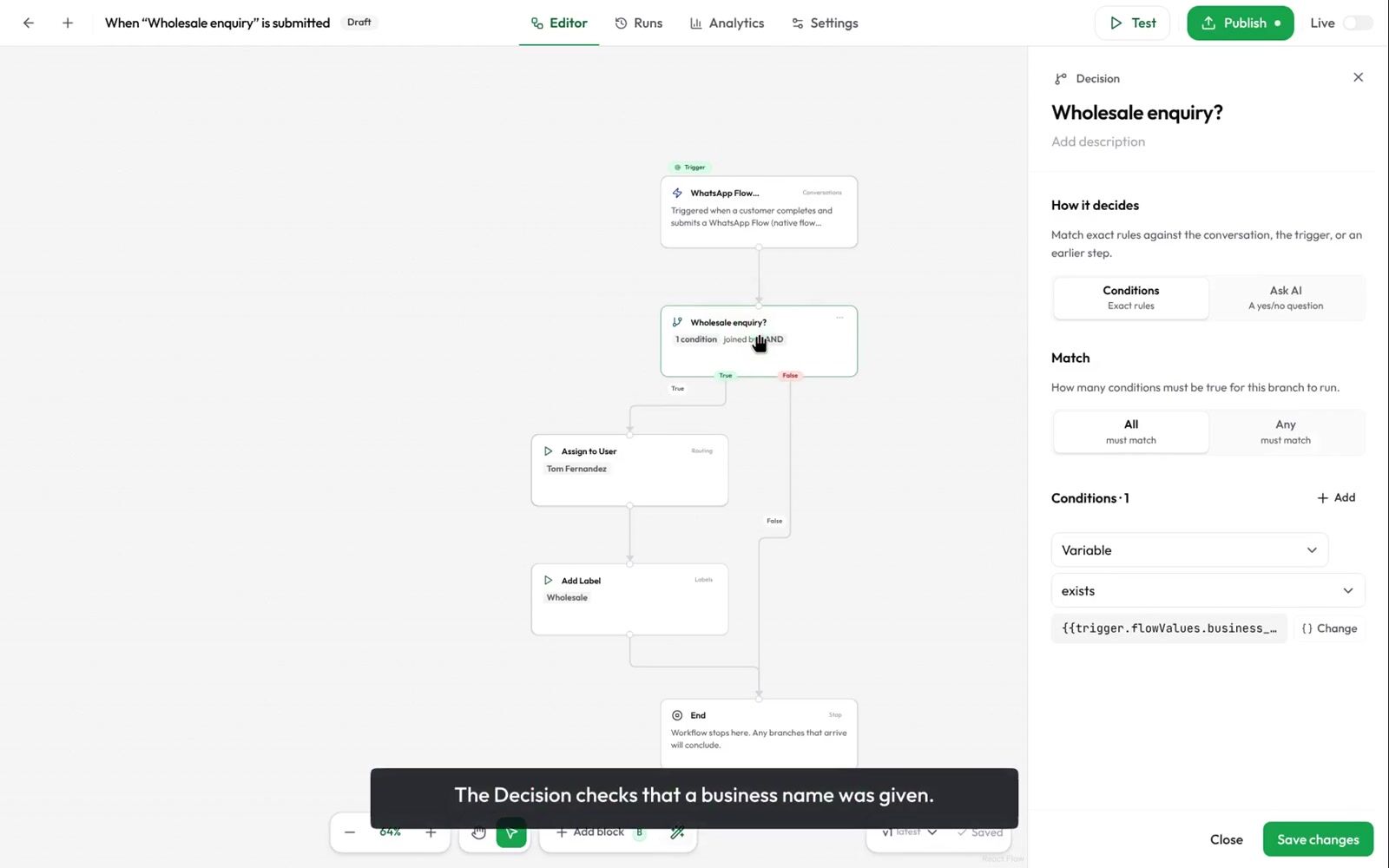
The trigger fires for every submission; branch on the answers with a Decision node using a Variable condition. For example, a service-booking flow:
- Trigger: WhatsApp Flow Submitted
- Decision: variable
trigger.flowValues.pickupequalsyes - Yes → Add Label
pickup-requestedand Assign to User · No → Send Message with drop-off instructions
To react to one specific flow only, add a condition on trigger.templateName (or trigger.campaignId to scope to a single campaign).
Related topics
- WhatsApp Templates — sync and manage the templates that carry Flow buttons
- Campaigns — send a flow to a whole segment
- Workflows — everything triggers and actions can do