Invoices
Pay an unpaid invoice, view your invoice history, and download receipts for your Cloodot subscription.
Go to Settings → Billing & Plans and open the Invoices tab for every invoice Cloodot has issued for your workspace, and the one it will issue next. Use it to pay an invoice that is still due, see what your next bill will be, download receipts for accounting, or check a charge.
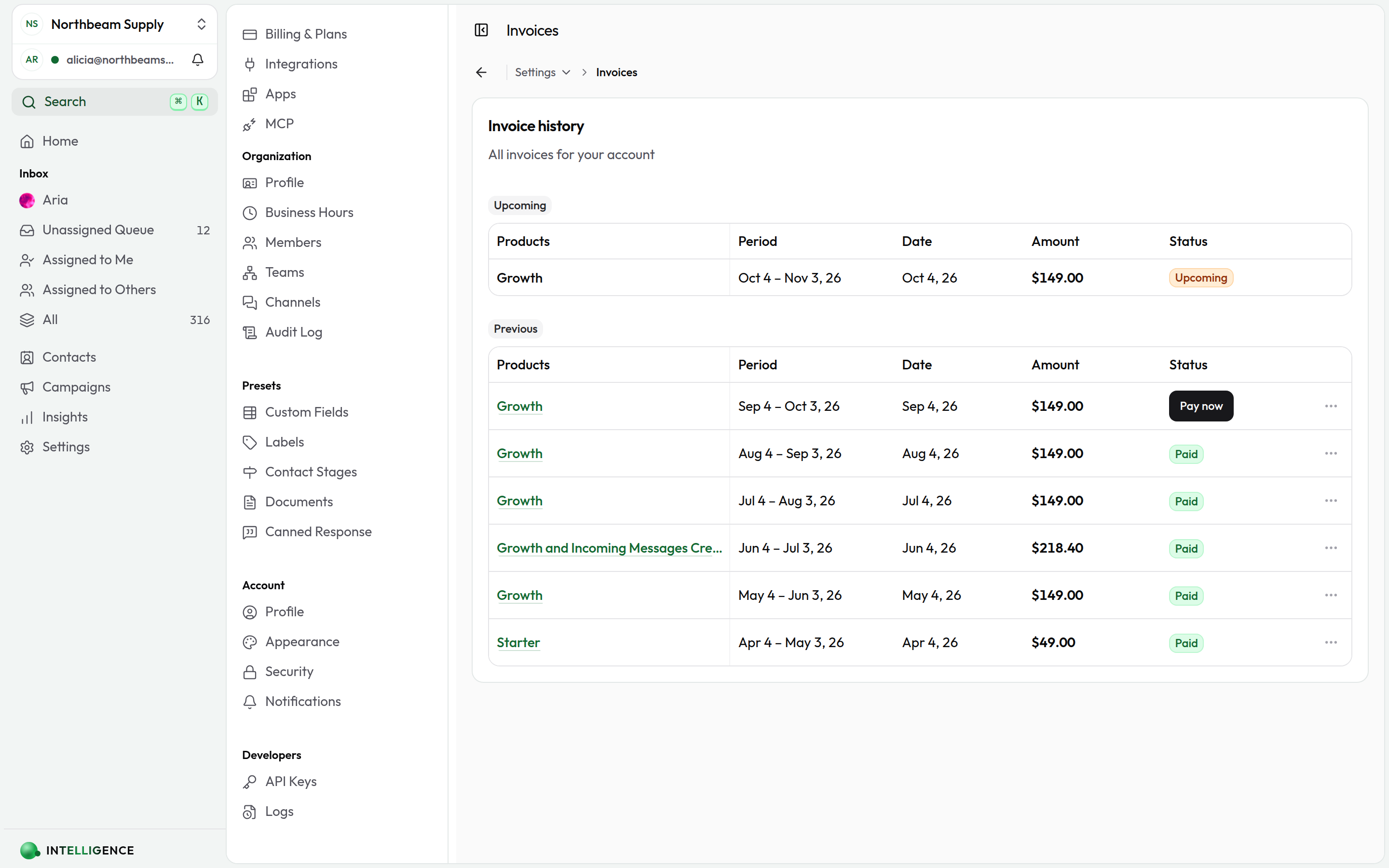
Invoice history
Invoices appear in two tables with the same columns:
- Upcoming — the invoice your subscription will raise next, so you can see what is coming before it is charged. It appears only while there is one. Its name is not a link and its row has no menu or actions: nothing has been raised yet, so there is nothing to open, copy or pay.
- Previous — every invoice already issued, newest first.
| Column | What it shows |
|---|---|
| Products | the plans and credit packs the invoice bills for. Click the name to open the invoice |
| Period | the stretch of your subscription the invoice covers, e.g. Sep 3 – Oct 2, 26. A one-off charge such as a credit top-up covers no period and shows a dash |
| Date | the day the invoice was issued — or, on an upcoming invoice, the day it will be |
| Amount | the total in your account currency |
| Status | the current state of the invoice — or a Pay now button, on a row that still owes something |
| ⋯ | the row menu, with Copy invoice ID |
Invoice status
- Pay now — a button rather than a badge. This invoice still owes something, and pressing it settles the invoice
- Upcoming — not raised yet; this is what your next bill will be (orange)
- Paid — payment succeeded (green badge)
- Due or Overdue — owed, but with no secure page behind it to pay on, so there is no button (orange). Get in touch and we will sort it out
- Draft and Void appear with a neutral badge
Pay an invoice
Anything still owed carries a Pay now button where its status would otherwise be. Pressing it takes you to the invoice's secure Stripe page, where you can pay with your saved card or a different one. Once it goes through, the row turns to Paid.
If the invoice was already paid in the meantime — Stripe retried the card, or someone paid it in another tab — you are told so and nothing is charged.
Paying is limited to workspace owners and admins.
Download or print an invoice
Click the invoice's name in the Products column — the underlined one. A hosted invoice page opens in a new tab where you can:
- Download the PDF
- Print directly from the browser
- Share the link with your accounting team
To quote the invoice rather than open it, use Copy invoice ID in the row's ⋯ menu.
Before your first invoice
Until your workspace has been billed once, the Previous table reads "No invoices found" — though an Upcoming invoice may already be there, showing what your first bill will be. Open Billing & Plans to review your subscription.
Related topics
- Billing & Plans — manage your subscription and payment method
- Organization Profile — update the organization details that appear on invoices