Deals
Move contacts through your pipeline on a drag-and-drop board.
Deals turns your contacts into a pipeline you can work. Each column is a stage, every card is a contact, and you move a deal forward by dragging its card from one stage to the next.
Stages are your organization's contact lifecycle stages, so a deal's stage stays in sync everywhere that contact appears — the All Contacts table, Watchlists, and the contact's own details.
Opening Deals
- Go to Customers in the left sidebar.
- Click Deals.
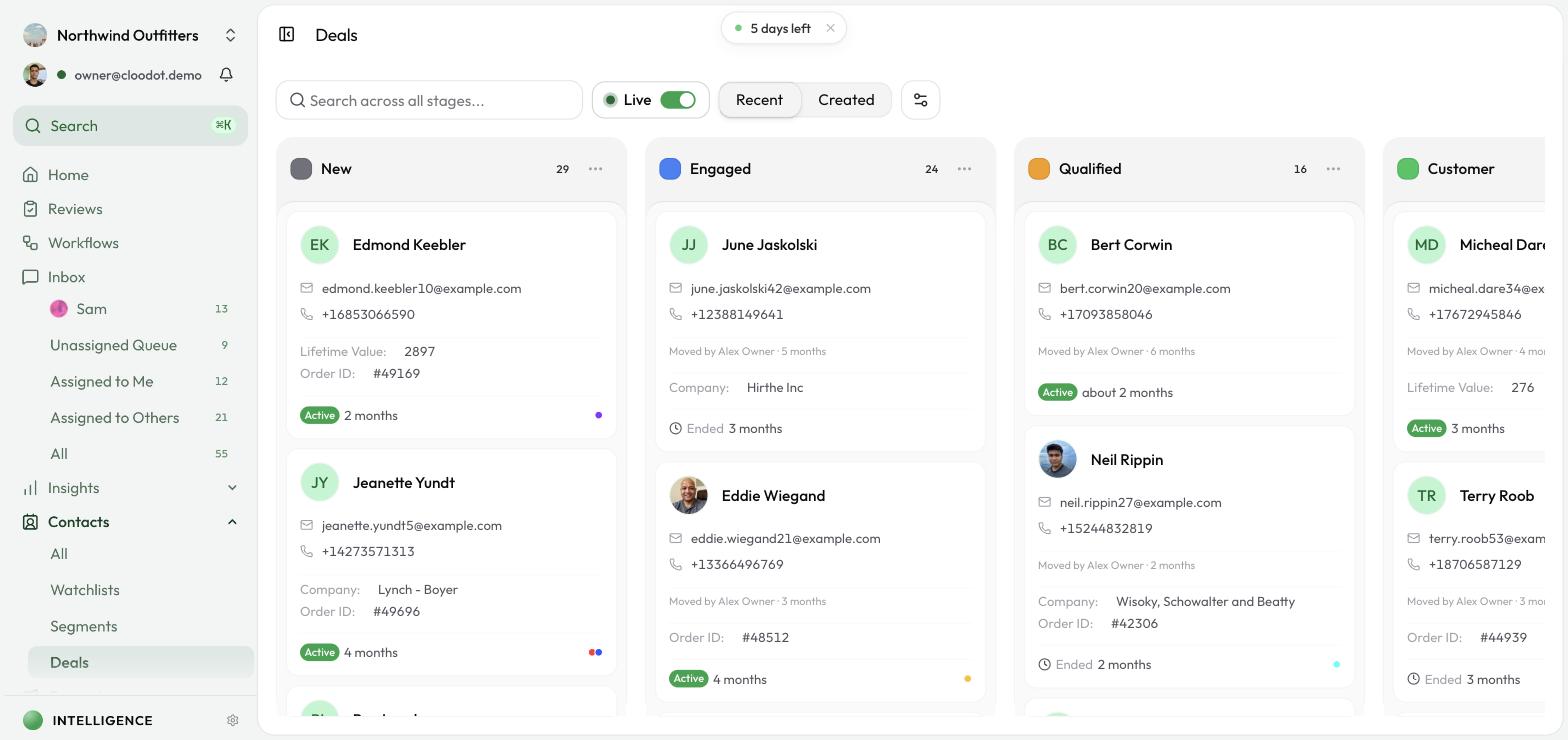
The board shows one column per stage, each with a colored dot, the stage name, and a badge counting the contacts in it.
What's on the board
- Columns are stages — Ordered left to right the way you've arranged them (for example, new leads on the left, closed deals on the right).
- Cards are contacts — Each card shows the contact's name and avatar, plus any details you've chosen to display (email, phone, custom fields, labels, recent activity).
- The count badge in each column header shows how many contacts are in that stage.
- The "Moved by … · [time]" line on a card tells you who last moved that deal into its current stage, and when.
Each column loads more cards as you scroll, so a busy stage stays fast.
Moving a deal
Drag a card from one column onto another to move that contact to a new stage. The card lands at the top of its new column right away.
To move several deals at once:
- Select the cards — Hover a card and tick its checkbox, or hold ⌘ / Ctrl and click. Hold Shift and click to select a run of cards in the same column.
- A bar appears at the bottom showing how many are selected.
- Click Move to and pick a stage — or drag any selected card and the whole selection follows.
- Use Clear (or press Esc) to deselect.
Stages are shared across Cloodot. Moving a deal on this board changes the contact's stage everywhere else too — in All Contacts, Watchlists, and the Contact Details panel.
Editing your pipeline
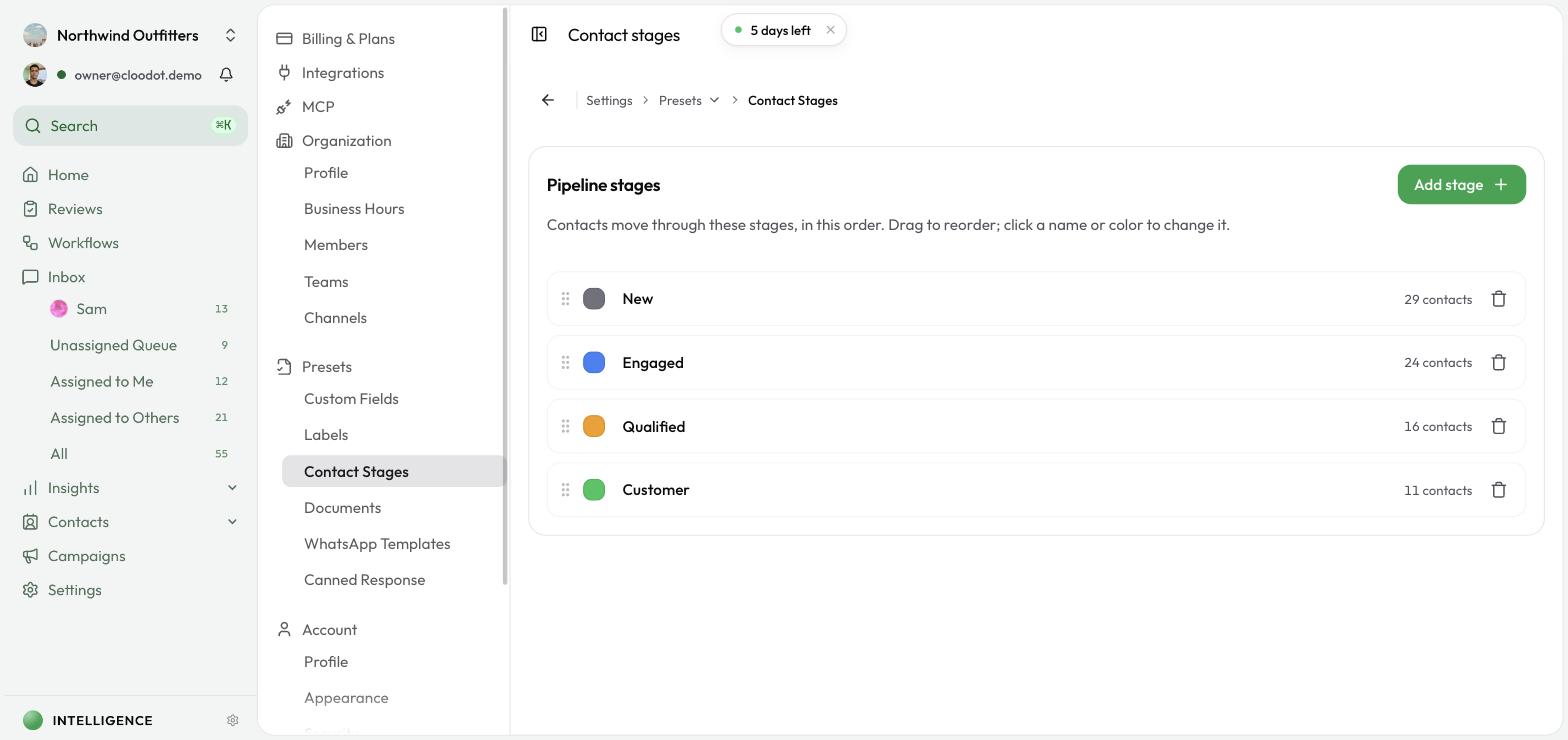
Shape the pipeline right on the board:
- Rename a stage — Click its name in the column header, or open the column's ⋯ menu and choose Rename. Names are 2–32 characters.
- Recolor a stage — Click the colored dot in the column header and pick a new color.
- Add a stage — Use the dashed Add stage column on the far right: type a name, optionally choose a color, and press Enter.
- Delete a stage — Open the column's ⋯ menu and choose Delete. You can't delete your only stage, and any contacts still in a deleted stage are simply left without a stage (they're never deleted).
- Reorder or bulk-edit — Open a column's ⋯ menu and choose Manage all stages to jump to the full pipeline settings.
Editing the pipeline — adding, renaming, recoloring, deleting, or reordering stages — is available to admins and owners (and anyone granted the contact stages permission). Other members see a read-only board and can still move deals between stages.
Searching across stages
Use the search box to filter across all stages at once. Every column narrows to the contacts that match, and the count badges update as you type. Clear the search to return to the full board.
Live mode
- When Live is on, the board refreshes periodically, highlights contacts who were active in the last minute, and can play a subtle chime when a new contact arrives in a stage. Cards you just moved stay quiet.
- When Live is off, the board stays put until you refresh it, switch back to the tab, or change a setting.
The board also refreshes whenever you return to the tab, so you're always looking at the latest pipeline.
Sorting and display
- Use the Recent / Created toggle to sort each column by most recent session activity or by when each contact was created.
- Use Display Options (the settings icon) to choose what each card shows: email, phone, custom fields, labels, and last interaction.
Cloodot remembers your sort order and display settings for next time.
Opening a contact
Click any card to open the Contact Details drawer, where you can review and edit everything about that contact. To grab a contact's details quickly, hover its card and use the copy button.
Related guides
- Contacts Overview: Understand the available contact views
- All Contacts: Search and manage every contact
- Watchlists: Monitor selected segments side by side
- Segments: Group contacts with filter rules
- Custom Fields: Track the details that show on cards
- Labels: Tag and categorize contacts