WhatsApp Catalogues
Sync Meta Commerce Manager catalogues into Cloodot so your AI can showcase products in conversations.
Sync the product catalogues you've set up in Meta Commerce Manager into Cloodot. Your AI Persona can then reference products inside WhatsApp conversations — sharing images, prices, and details where customers are asking.
Go to Settings → Organization → Channels, open your WhatsApp number, and pick the Catalogues tab — it sits beside Templates, Flows, Opt-ins and Welcomes. You can also open the command palette (⌘K / Ctrl+K) and search for Catalogues.
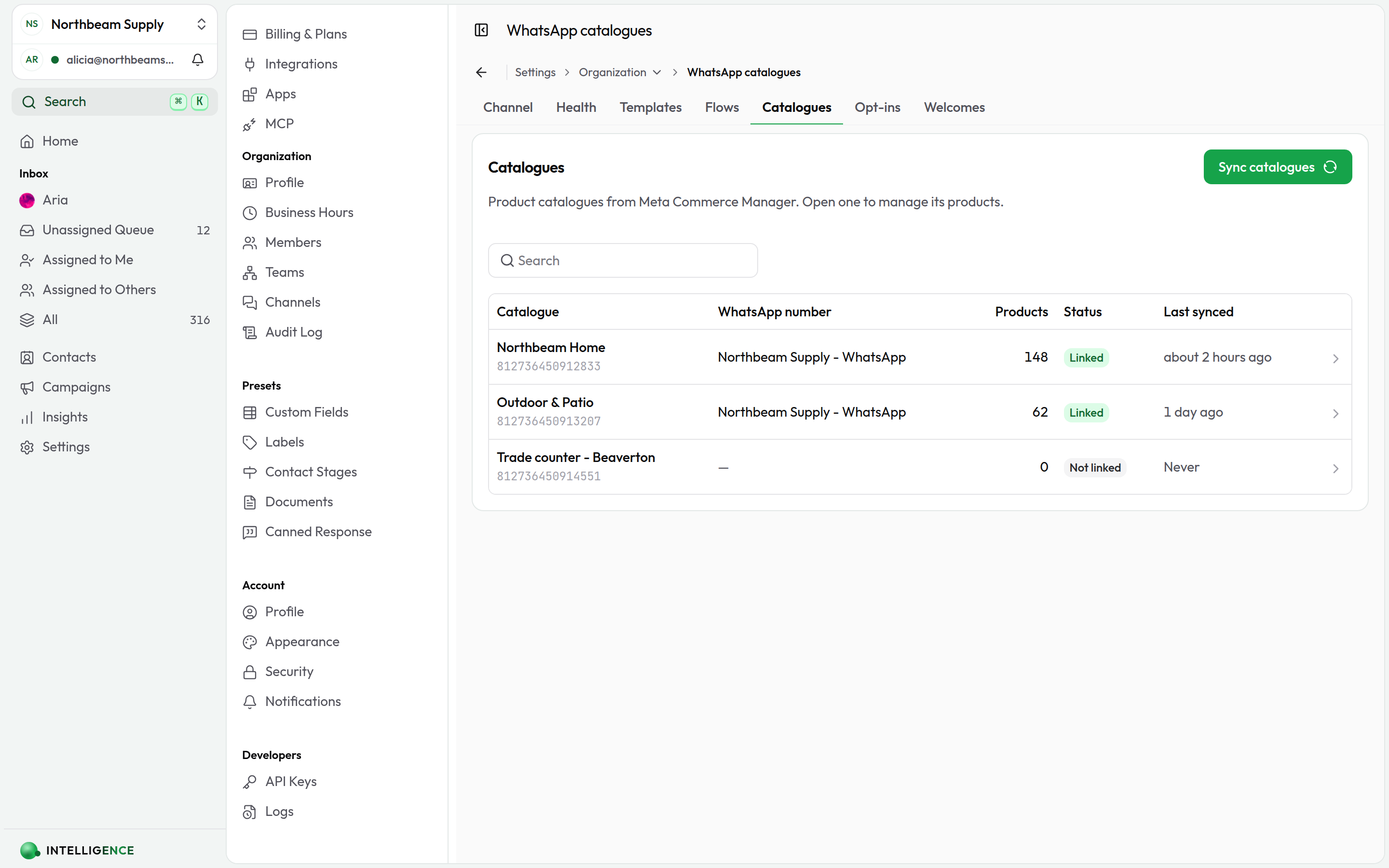
Catalogues live in Meta Commerce Manager — Cloodot pulls them in and keeps them in sync. Products you add, edit or delete in Cloodot are written back to the same catalogue in Meta.
Prerequisites
- A connected WhatsApp Business number
- A catalogue created in Meta Commerce Manager and linked to your WhatsApp Business account
Browse your catalogues
The page lists every catalogue synced to your workspace, with:
- The catalogue name
- The number of products it contains
- Last synced timestamp
- A Status badge
- A view action to open and manage products
Filter the list
- Search — Type to filter catalogues by name
- Channel — If you have more than one WhatsApp channel, use the channel selector to filter catalogues by number (or pick All Channels)
Sync catalogues
Click Sync catalogues to pull the latest catalogues from Meta. With All channels selected it syncs every WhatsApp number; pick a single number in the channel selector to sync just that one.
Run a sync any time you've added, removed, or updated products in Meta Commerce Manager. A periodic background sync runs automatically — manual syncs are for when you need changes reflected immediately.
Without a connected WhatsApp number, you'll see Connect WhatsApp first with a Connect WhatsApp button. Syncing is off until a number is connected.
Manage a single catalogue
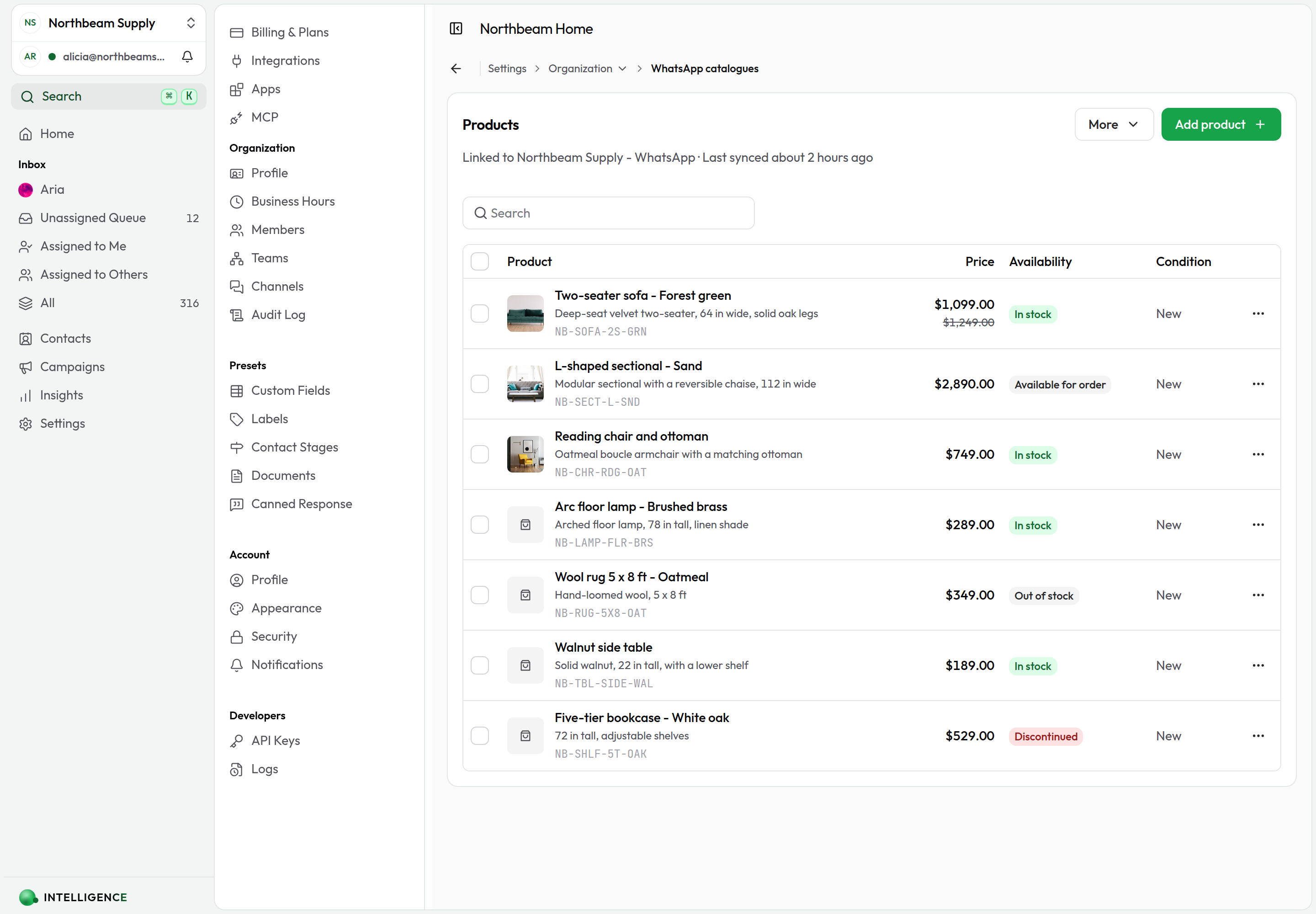
Click any catalogue to open its products. Each row shows the product's image, name, description, retailer ID, price, availability and condition.
The line under Products shows which WhatsApp number the catalogue is linked to and when it was last synced.
What you can do
- Search — Filter by name, description, or retailer ID
- Add product — Opens a side panel (a bottom sheet on a phone) for the product's name, retailer ID, price and sale price, availability, condition, visibility, image and product page
- Edit — Click a product to open the same panel with its details filled in. A product's retailer ID can't be changed
- Delete — Remove a product from its ⋯ menu
- Bulk actions — Tick several products to set their availability (in stock, out of stock, available for order, discontinued) or delete them together
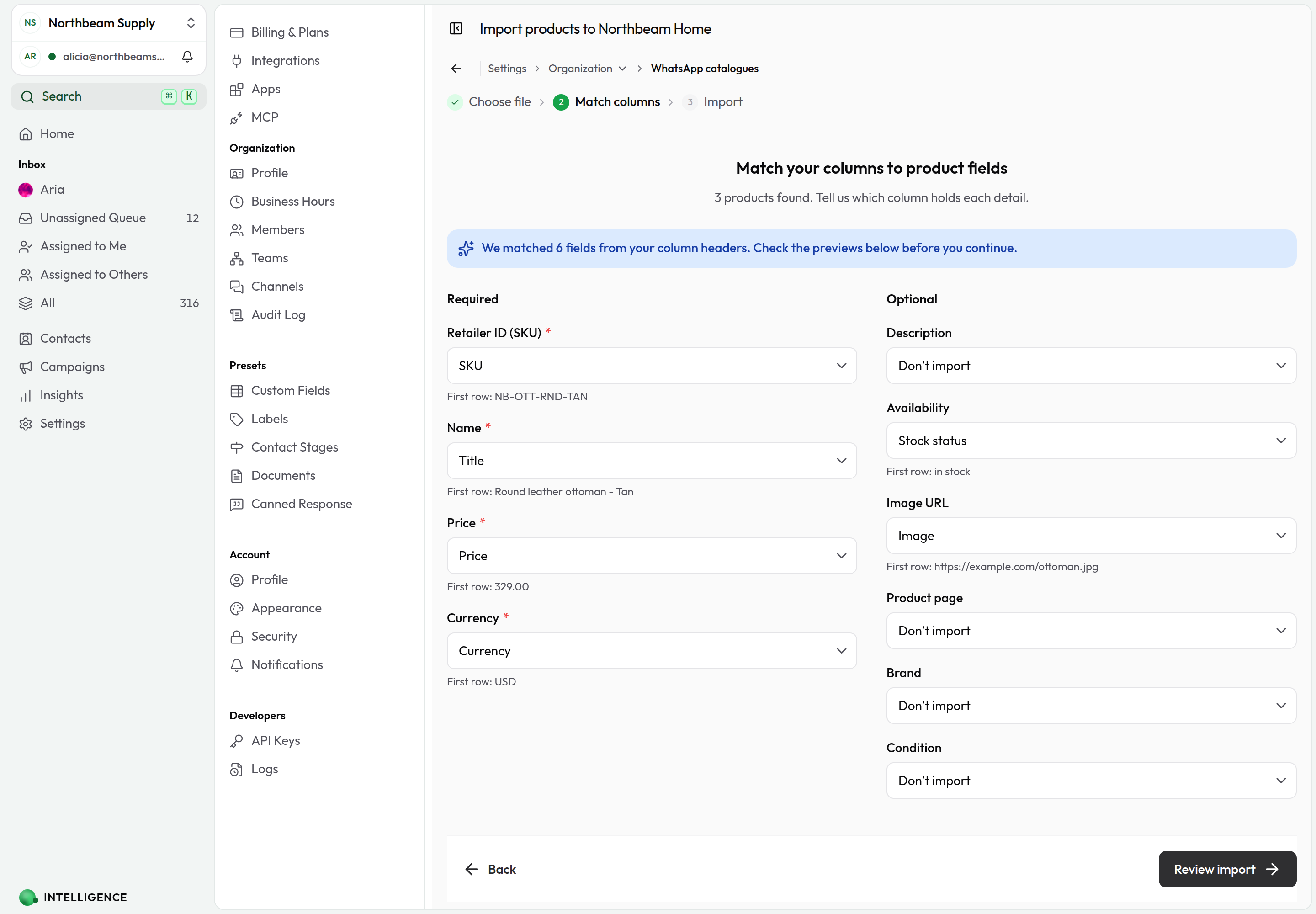
- More → Import from CSV — Upload a CSV (up to 10,000 products, 10 MB), match its columns to product fields, choose whether duplicates are skipped or updated, and watch the import run. Download a sample CSV on the first step gives you a file with every supported column
- More → Export as CSV — Download the catalogue (or the current search results) as a CSV
- More → Sync from Meta — Pull the latest products for this catalogue from Meta
Deleting a product in Cloodot also deletes it from the catalogue in Meta Commerce Manager. To hide an item without removing it, edit it and set Visibility to Hidden.
Tips
- Clear titles and descriptions — Cleaner product data helps your AI match customer questions accurately.
- High-quality images — WhatsApp shows product images inline in the chat, so make sure they look sharp.
- Keep inventory honest — Remove or hide items you can't fulfill, so out-of-stock products don't surface in conversations.
Related topics
- Connect WhatsApp — Link your WhatsApp Business number
- WhatsApp Templates — Create approved templates for outbound messaging
- WhatsApp Health — Monitor the health of your WhatsApp numbers
- Collections — Showcase items that aren't in your WhatsApp catalogue
- AI Agent — Tune how your AI Persona recommends products