Chat sidebar
Apply labels, fill custom fields, assign agents, and see conversation context without leaving the chat.
The sidebar sits to the right of the chat window and holds everything about the conversation that isn't a message — who owns it, how it's tagged, and what you know about the customer.
Sidebar sections
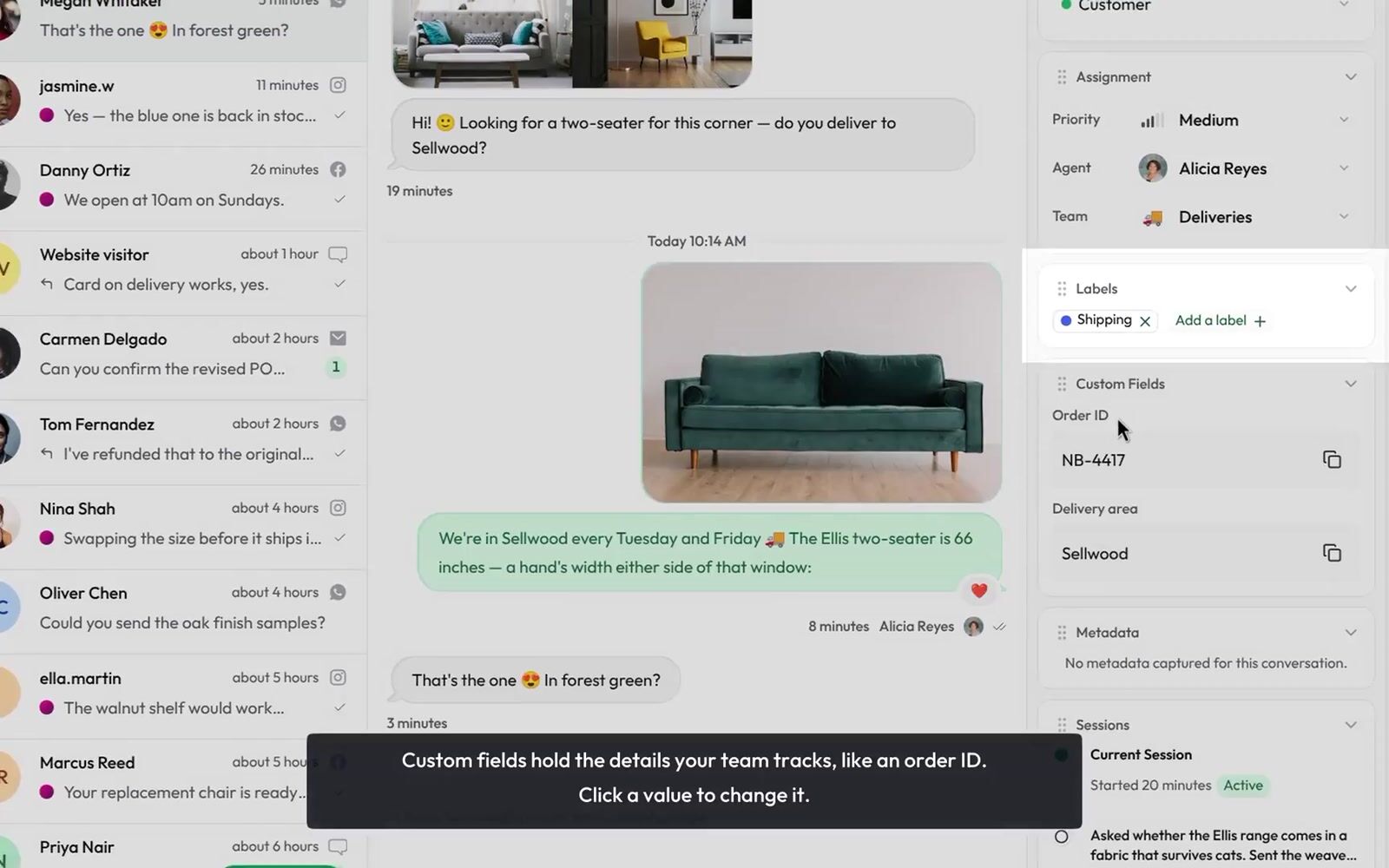
| Section | What it holds |
|---|---|
| Contact | Who you're talking to — name, phone number or email, and their stage. |
| Assignment | How urgent the conversation is and who handles it — a Priority row, an Agent row, and a Team row. The Team row only appears on plans that include team inboxes. |
| Labels | Tags applied to this conversation. |
| Custom Fields | Extra values your workspace tracks on this conversation, such as an order ID. |
| Metadata | Channel and system details for the conversation. |
| Sessions | Current and past sessions, with their summaries. |
Webchat conversations add On page and Location sections, and workspaces with macros turned on get a Macros section under Assignment.
Arrange the sidebar
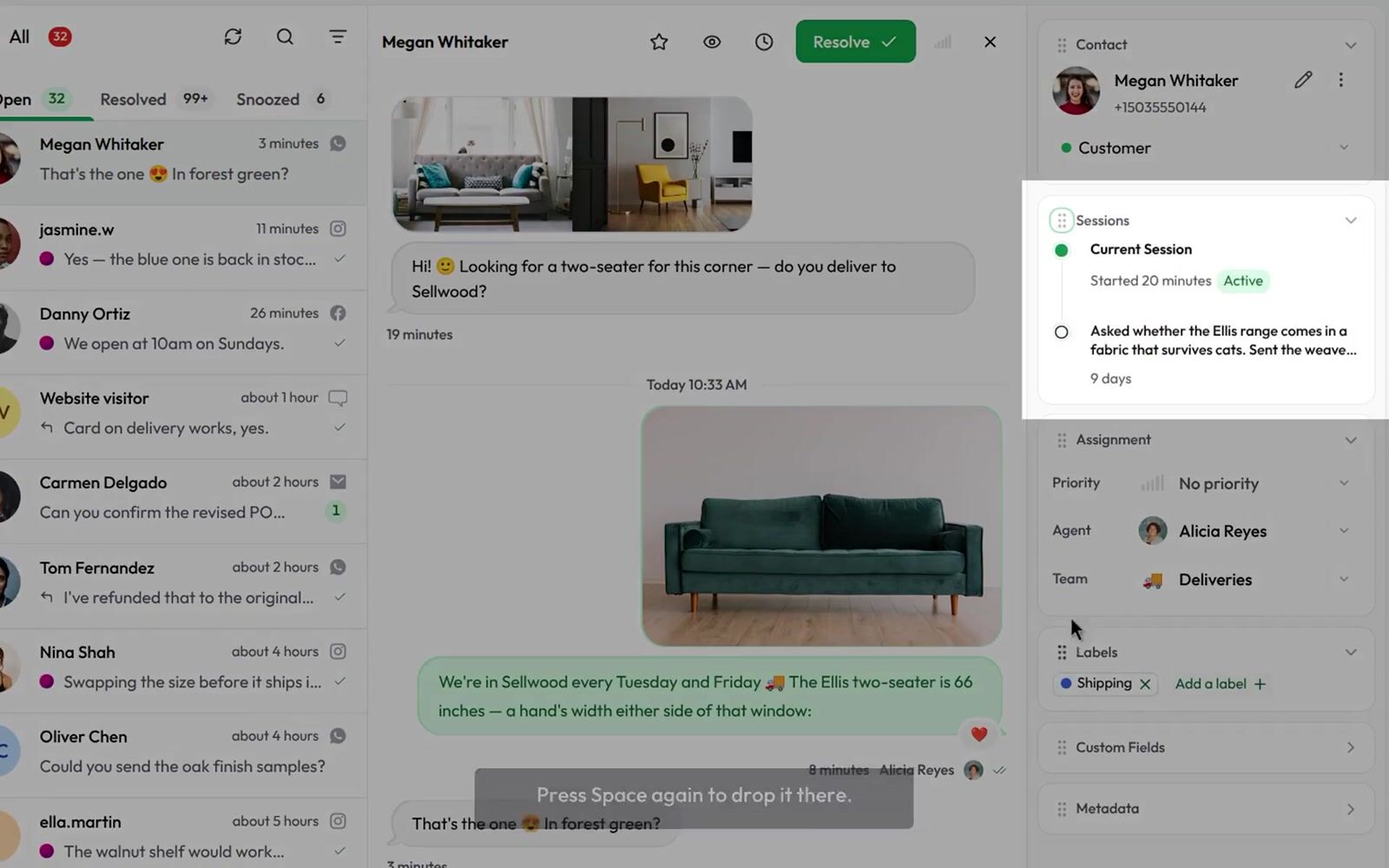
You can shape the sidebar around the way you work. Every change here is remembered in your browser and applies to every conversation you open.
- Fold a section — click its title. It shrinks to a single line; click the title again to open it.
- Move a section — drag the grip (the dots to the left of the title) up or down. From the keyboard, focus the grip and press Space to pick the section up, the arrow keys to move it, and Space again to drop it. Escape puts it back where it was.
- Hide the whole sidebar — click the menu button at the far right of the conversation header, or press ]. Click it again to bring the sidebar back, with your folds and order as you left them.
Because the layout is stored in the browser, a different browser or device starts from the default: every section open, in the standard order.
Set the priority
The Priority row at the top of the Assignment section says how fast this conversation needs a person, on a six-level scale from No priority to Urgent. It reads as five ascending bars.
Your AI agent rates it whenever it hands a conversation to a human. Click the row to open the picker and set your own reading — including No priority to clear it. The change is recorded in the thread with your name on it.
The rating covers the current interaction, so it resets to No priority when a new session begins. See Priority for the scale, the sort, and every case that resets it.
Apply labels to a conversation
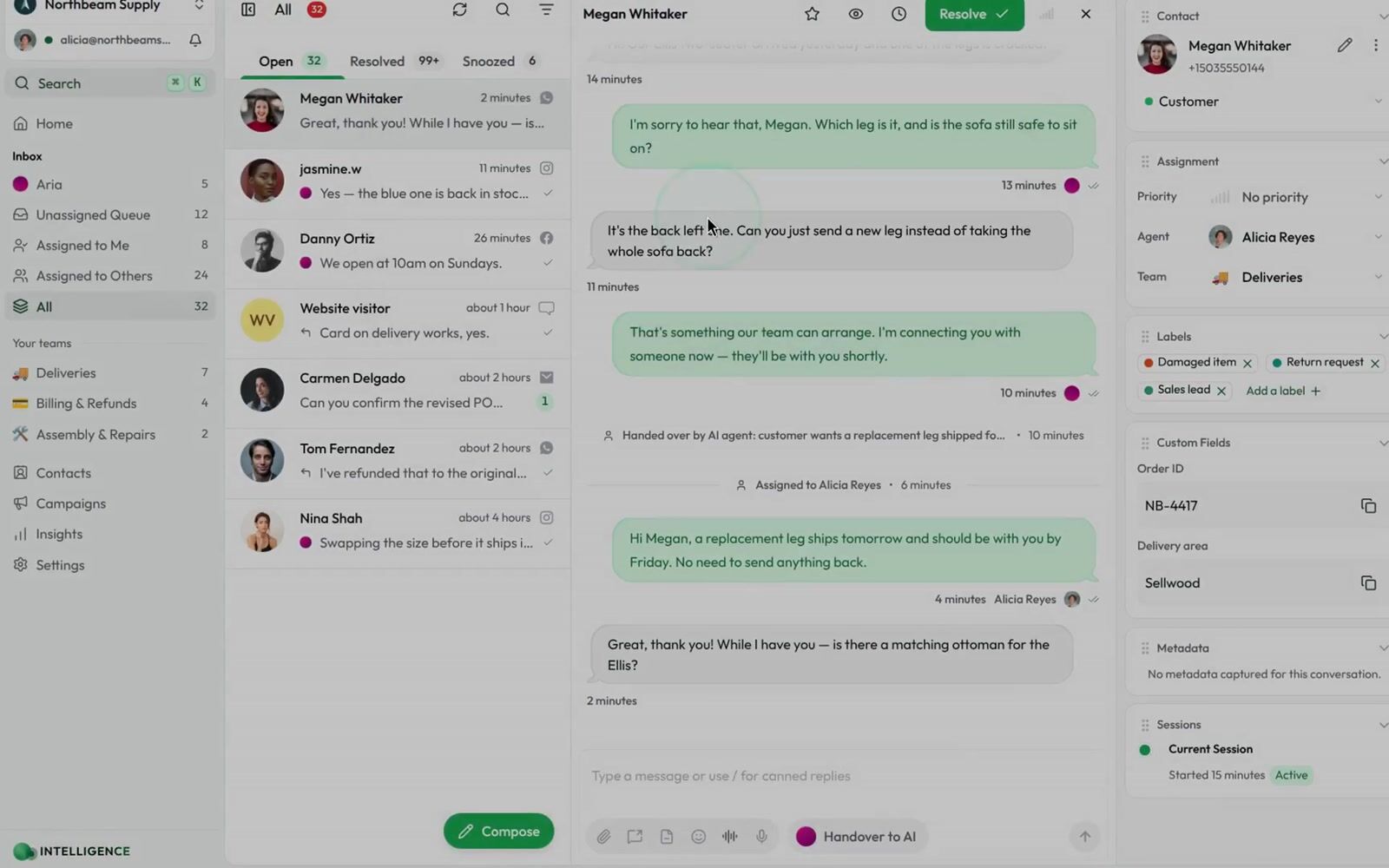
Labels are tags — "VIP Customer", "Billing Issue", "Needs Follow-up". Applying one here tags this conversation, which then feeds filters, segments, and reports.
- Open the Labels section in the sidebar.
- Click Add a label. The command palette opens on Assign labels, listing every label in your workspace — type to narrow it.
- Select a label to apply it. It appears as a coloured tag in the section.
- To remove one, click the × on the tag. The label comes off this conversation only; it stays in your workspace.
While your AI agent is answering a conversation, it also applies labels on its own — any label with AI Extraction turned on. A label the AI applied looks exactly like one you applied, with no separate mark, and you remove it the same way. Create labels, write the descriptions the AI reads, and choose which ones it may apply under Settings → Presets → Labels (see Labels).
Fill in custom fields
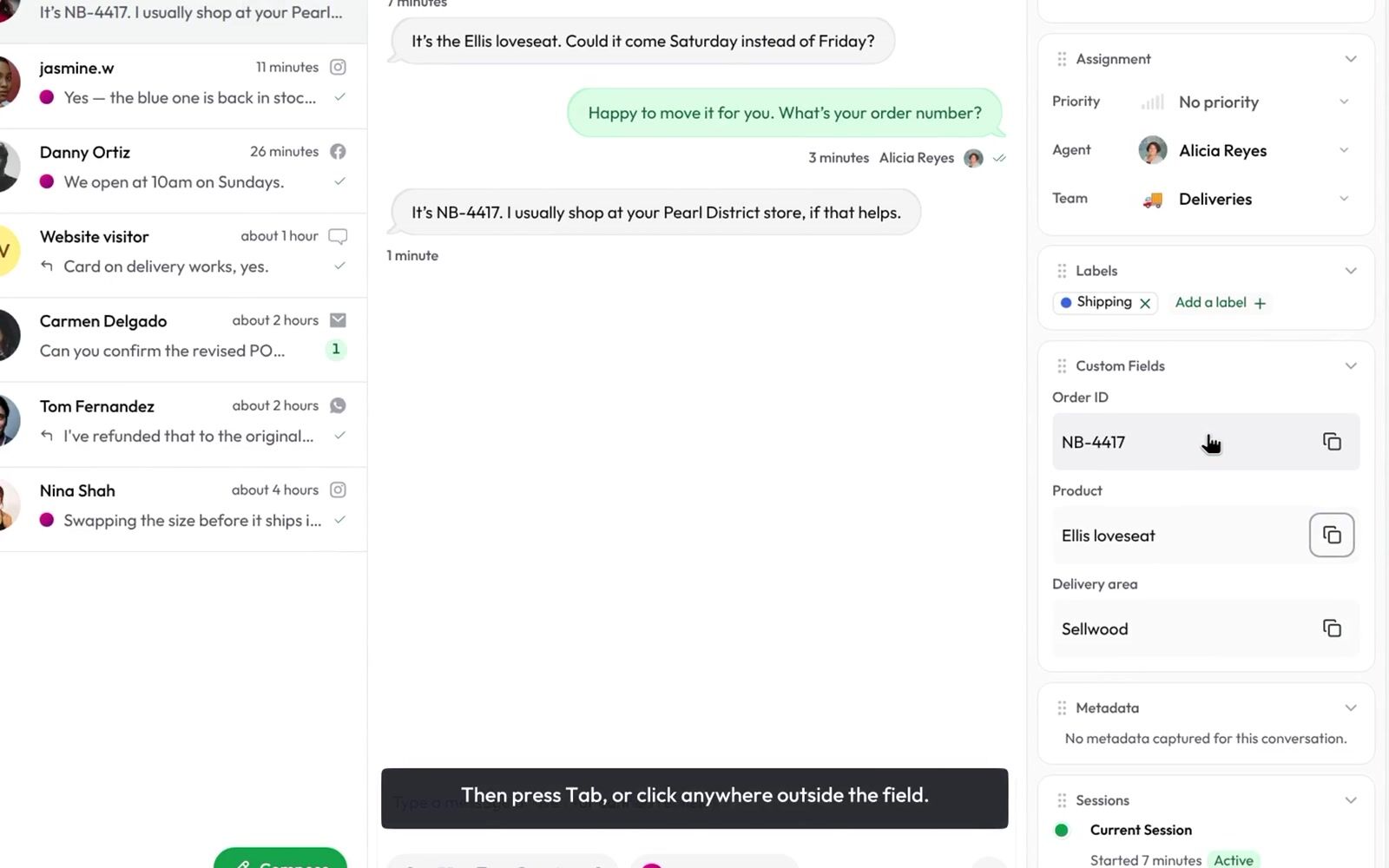
Custom fields store the extra context your default fields don't cover — plan type, order ID, issue category, city.
There are two kinds, and they are filled in from two places:
- Conversation fields describe this conversation — an order ID, a delivery area, an issue category. Their values belong to this conversation only.
- Contact fields describe the person — a home store, a customer tier, a city. Their values follow the contact into every conversation with them.
Conversation fields
The sidebar's Custom Fields section lists your workspace's conversation fields.
- Click the value you want to change (an empty field shows -).
- Type the value, or pick an option.
- Press Tab or click outside the field. It saves as soon as you leave it.
If the section says No custom fields found, your workspace has no conversation fields yet.
Contact fields
Contact fields are part of the contact's details rather than the Custom Fields section.
- In the Contact section, click the pencil (Edit full contact details).
- Scroll to Custom Fields at the bottom of the form and fill in the values.
- Click Save.
Fields with AI Extraction turned on can also be filled automatically from the conversation, so you often only need to correct or complete them.
Define the fields themselves under Presets → Custom Fields.
Related topics
- Chat window and functionalities — Replying, canned responses, documents, and snooze
- Priority — The urgency scale, sorting by it, and when it resets
- Sessions — Review past interactions and their summaries
- Labels — Create and manage the label library
- Custom Fields — Define contact and conversation fields