Sessions
Review each customer interaction with its AI summary, labels, and custom fields.
A session is one round of a conversation. It starts when the customer writes in — a new chat, or one reopened after it was resolved — and it closes when the chat is resolved, at which point AI writes a short summary of it. A returning customer's chat therefore carries several sessions, each with its own summary, labels, and custom fields, so you can audit, review, or learn from any exchange.
Sessions are especially useful for QA, coaching, and spotting patterns over time.
Sessions in a chat's sidebar
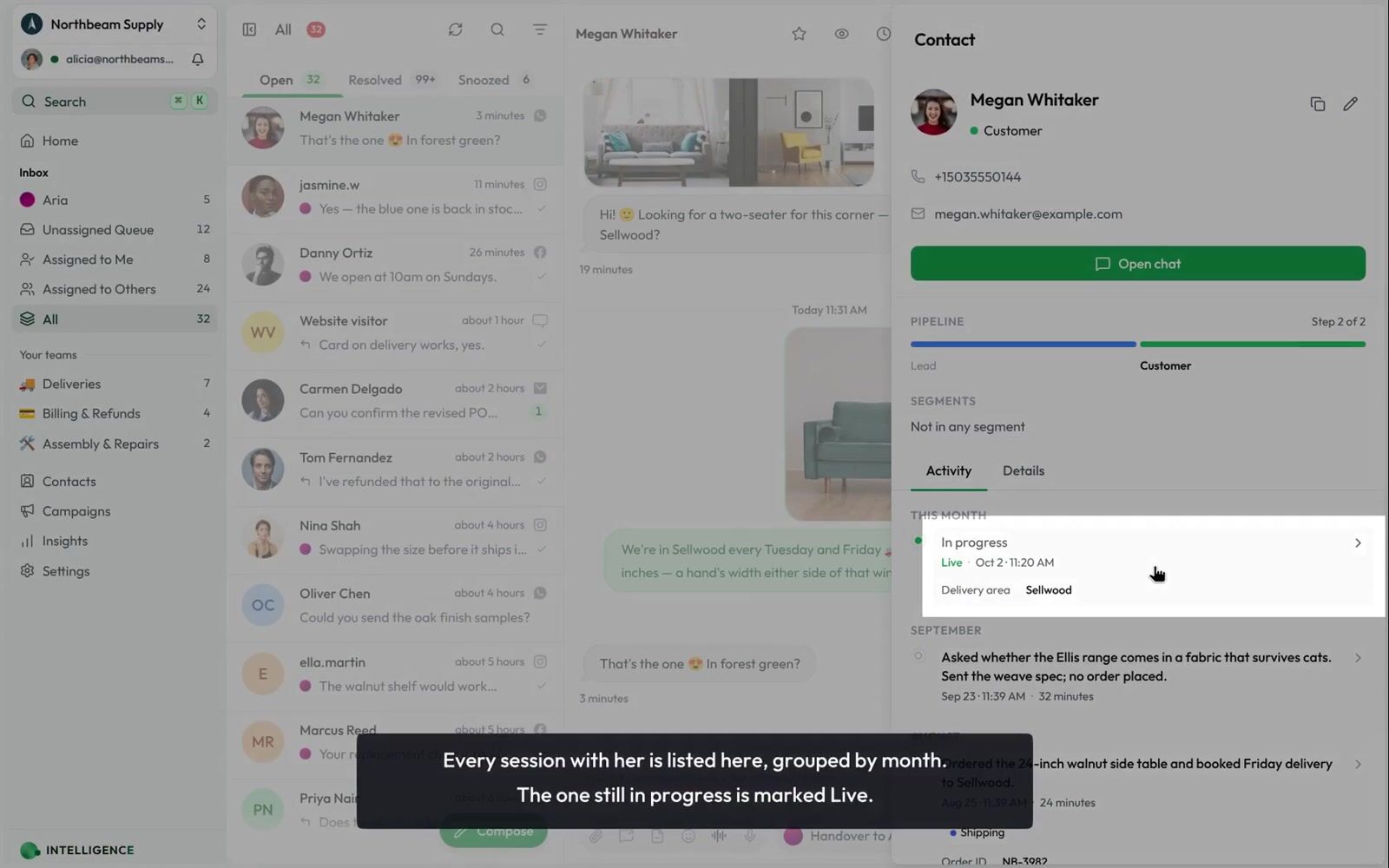
The Sessions section at the bottom of a conversation's right sidebar shows this chat's history with the customer:
- Current Session — The round in progress, marked Active, with when it started and any custom fields collected so far
- Earlier sessions — Up to four, newest first, each titled by its AI summary, with how long ago it started and its custom fields
Click a session to open the contact's details on the Activity tab. It lists every session with that contact, across all their chats, grouped by month — the one in progress is marked Live, and each shows its summary, start time, duration, labels, and custom fields. Click an entry there to open the chat it came from. When the section lists four earlier sessions, a View all sessions button below them opens the same place.
Opening the Sessions page
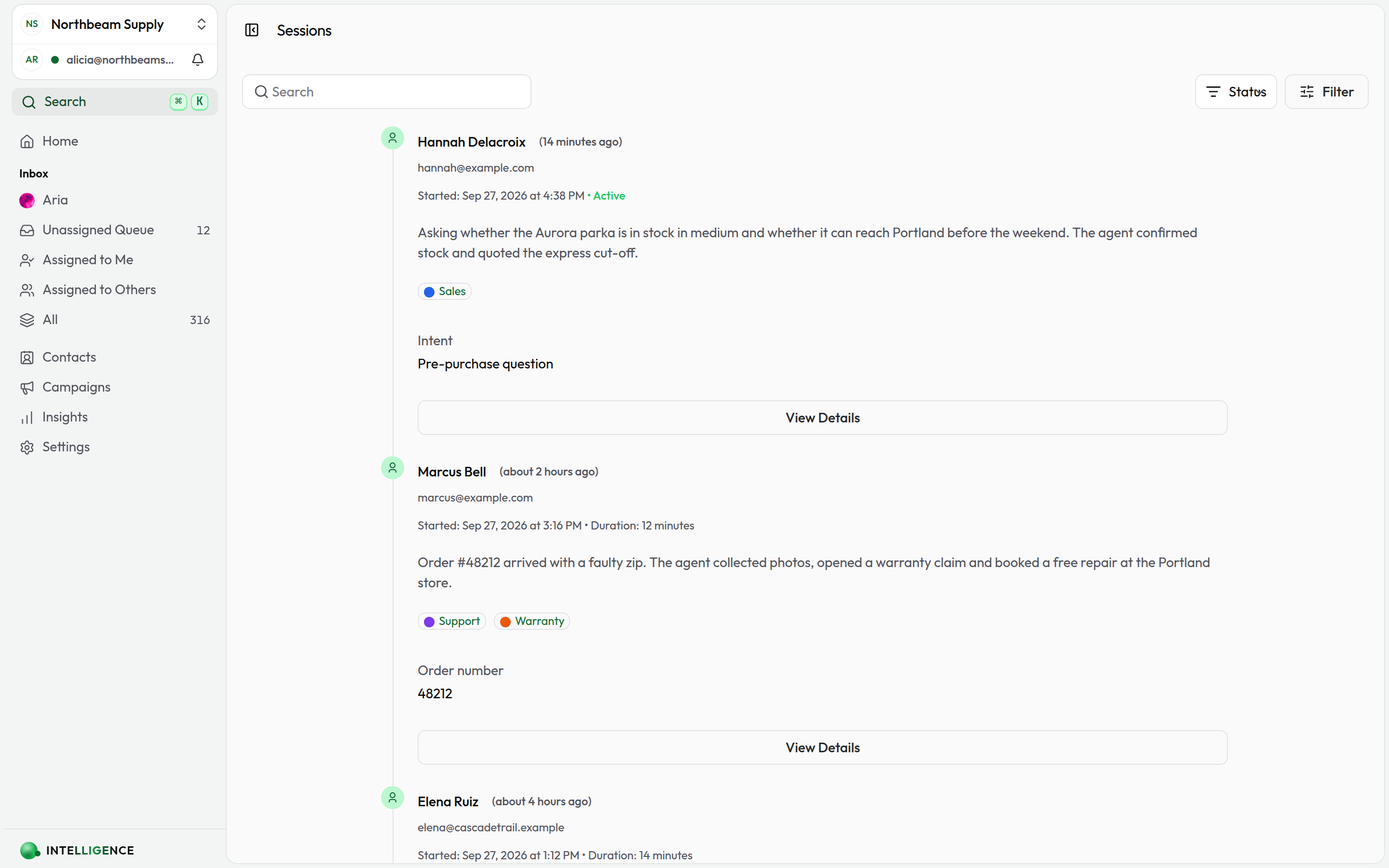
Open the command palette (⌘K / Ctrl+K) and search for Sessions to see every session across your workspace. The timeline shows recent sessions, newest at the top.
What each session shows
Each session in the list includes:
- Contact details — Name, avatar, and email
- When it started — And how long it ran, if it's already ended
- Status — Marked Active while it's still in progress
- Summary — A short AI-generated recap of the conversation
- Labels and custom fields — Anything applied to the conversation
Filtering the timeline
Controls at the top narrow the list.
Status filter
Switch between:
- All Sessions
- Active Sessions — Still in progress
- Completed Sessions — Already wrapped up
Search
Type into the search box to match session summaries, contact names, and contact emails.
Advanced filters
Click the + button to add more filters:
- Summary — Sessions whose AI summary contains specific words
- Contact Name
- Contact Email
- Start Date and End Date
- Channel Type — WhatsApp, Instagram, Facebook, or WebChat
Layer filters to zero in on the sessions you care about.
Loading more
The timeline loads in batches as you scroll. Click Load More Sessions to pull in the next set. At the end, you'll see "You've reached the end of the sessions."
Viewing a session's contact
Click View Details on a session to open the contact's details on the Activity tab — every session with that contact, with its summary, start time, duration, labels, and custom fields. Click an entry to open the chat it came from, or Open chat to go to their most recent one.
When sessions come in handy
- Team coaching — Review how specific conversations were handled
- Spotting trends — Filter by channel and date to see what customers ask about
- Auditing AI handoffs — See what your AI agent handled and where it passed off to a human
- Customer context — Look up a contact's recent sessions before replying
Related topics
- Inbox — Where live conversations happen
- Conversation Insights — Aggregate analytics across sessions
- Labels — Tag sessions to make them easier to find later
- Custom Fields — Capture business-specific data on each session