Shopify
Connect your Shopify store to access customer, product, order, and collection data within Cloodot.
Shopify brings store data into Cloodot so your team and AI agent can look up customers, orders, and products without leaving a conversation.
What syncs
| Shopify data | What you can do |
|---|---|
| Customers | view profiles, contact info, marketing consent, order history, and tags |
| Products | browse products with pricing, inventory, vendor, and variant details |
| Orders | filter orders by status, payment status, fulfillment status, and date range |
| Collections | view product collections and their items |
Connecting Shopify to Cloodot: Shopify App Store
Install Cloodot on your store from this install link and approve the access it asks for. Shopify then sends you straight to Cloodot. There's no Cloodot screen inside your Shopify admin.
In Cloodot, sign in or create an account. Your store gets its own workspace, billed through your Shopify bill, and you pick a plan on Shopify's plan page. Product and collection syncing starts right away.
To come back later, open Cloodot from the Apps menu in your Shopify admin. It opens Cloodot in a new tab.
The App Store app doesn't receive order or customer events yet. If you need order lookups, order triggers or customer imports today, use the custom app method below.
Connecting Shopify to Cloodot: Custom app method
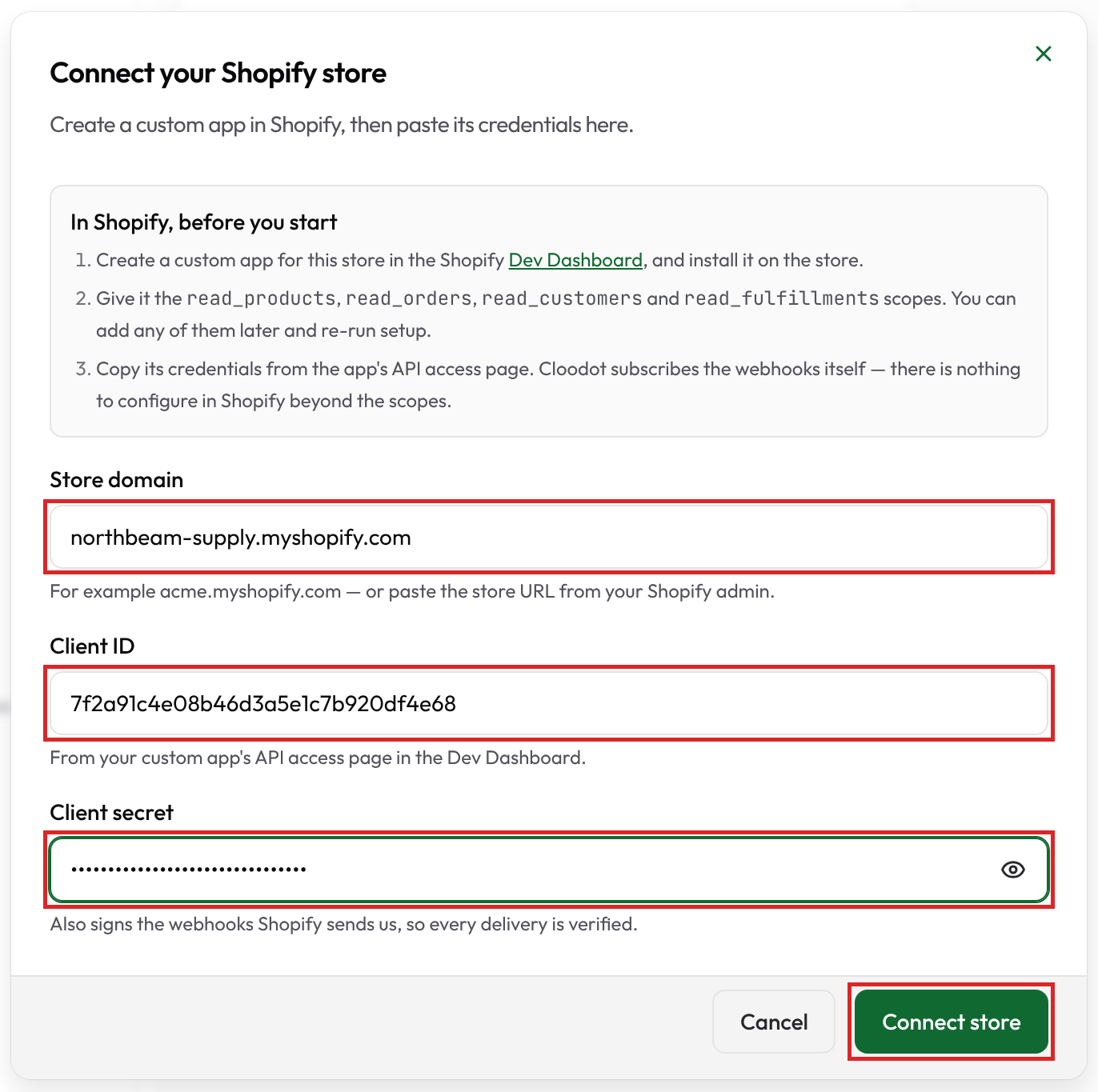
Create a custom app for your store in Shopify's Dev Dashboard, then paste its credentials into Cloodot. Cloodot subscribes to the order, checkout, refund, customer and shipment events itself, so the only things to set up in Shopify are the app and its scopes.
1. Create the app in Shopify
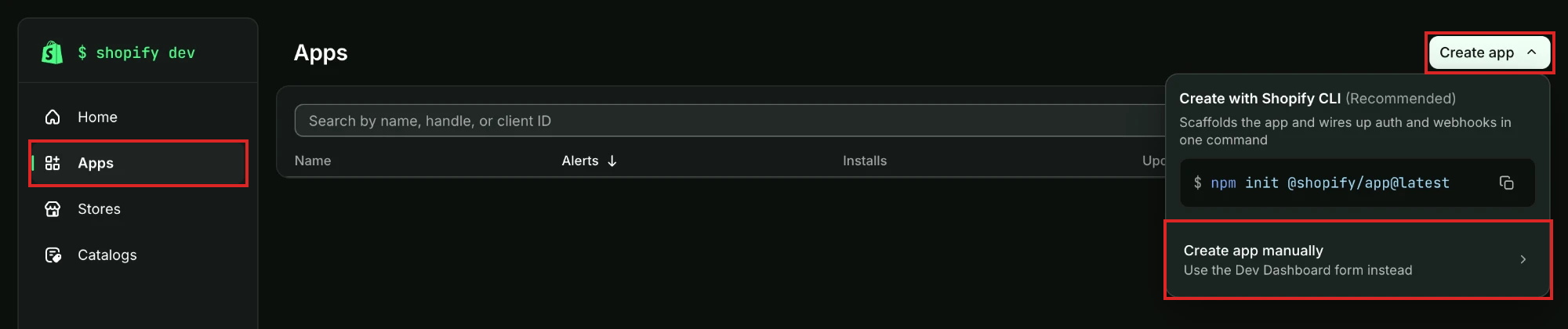
Sign in at dev.shopify.com. Go to Apps, click Create app, then choose Create app manually.
2. Fill in the app details
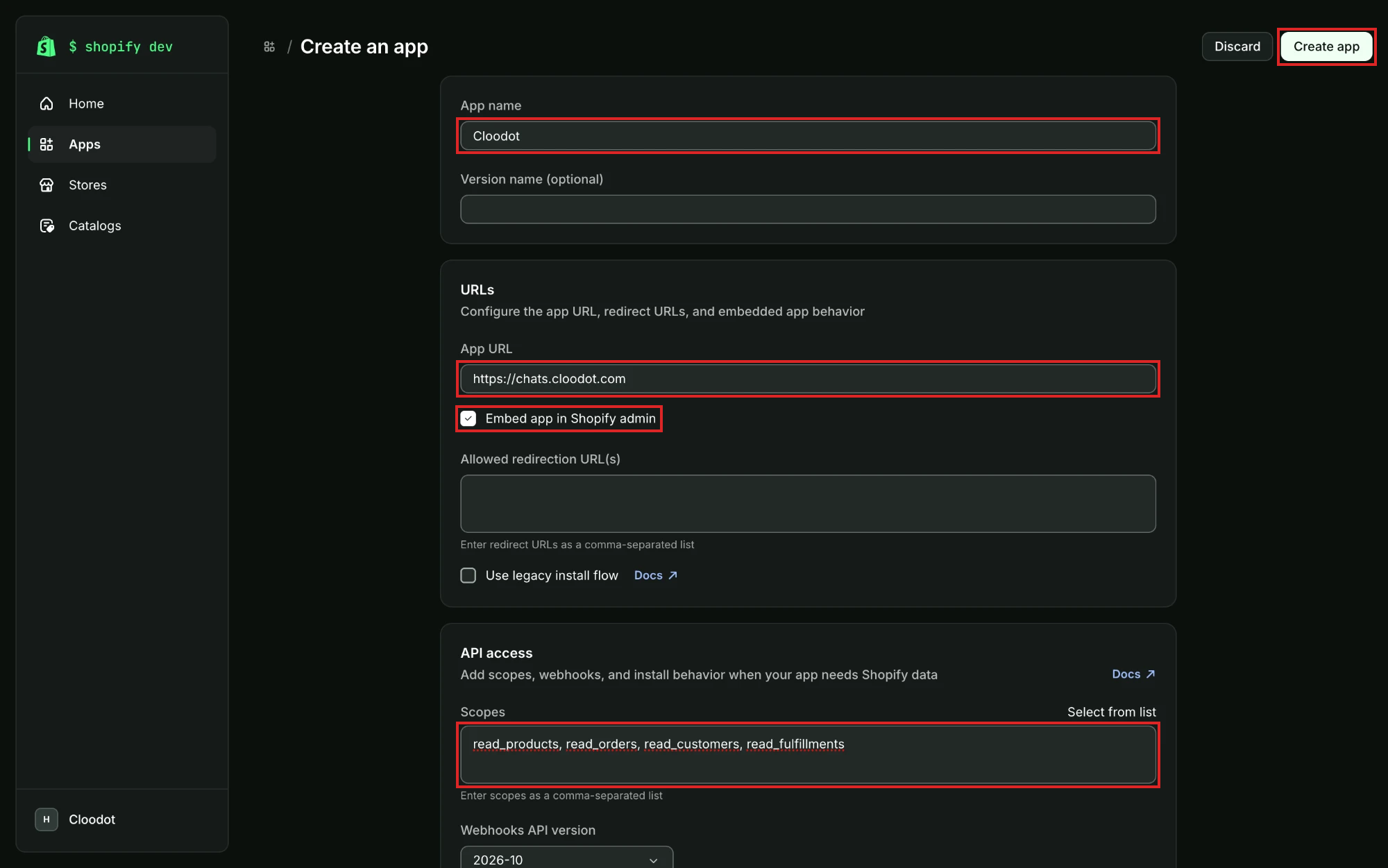
| Field | Value |
|---|---|
| App name | Cloodot |
| App URL | https://chats.cloodot.com |
| Embed app in Shopify admin | Leave it checked |
| Scopes (under API access) | read_products, read_orders, read_customers, read_fulfillments |
Then click Create app.
Each scope turns on part of the integration:
| Scope | What it turns on |
|---|---|
read_products | Syncing products and collections into your knowledge base |
read_orders | Order lookups, order triggers and abandoned-cart reminders |
read_customers | Importing Shopify customers as contacts |
read_fulfillments | The shipped, out for delivery, delivery failed and delivered triggers |
3. Release and install the app
Click Release to publish the app's first version, then install it on your store. Cloodot can only connect to a store the app is installed on.
4. Copy the client ID and secret
Open the app and go to App settings. Under Credentials, copy the Client ID and the Client secret.
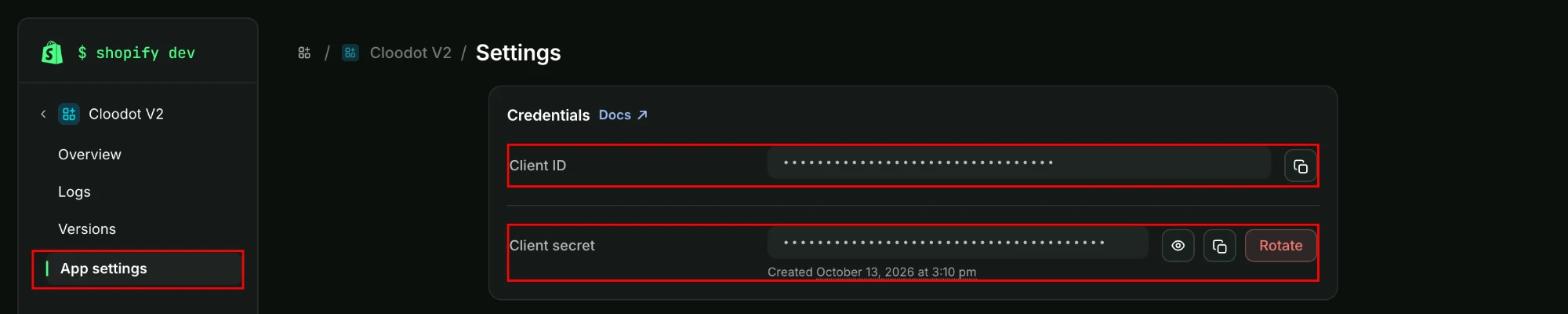
Treat the client secret like a password. If you click Rotate, the old secret stops working and you'll need to connect the store again with the new one.
5. Find your store's domain
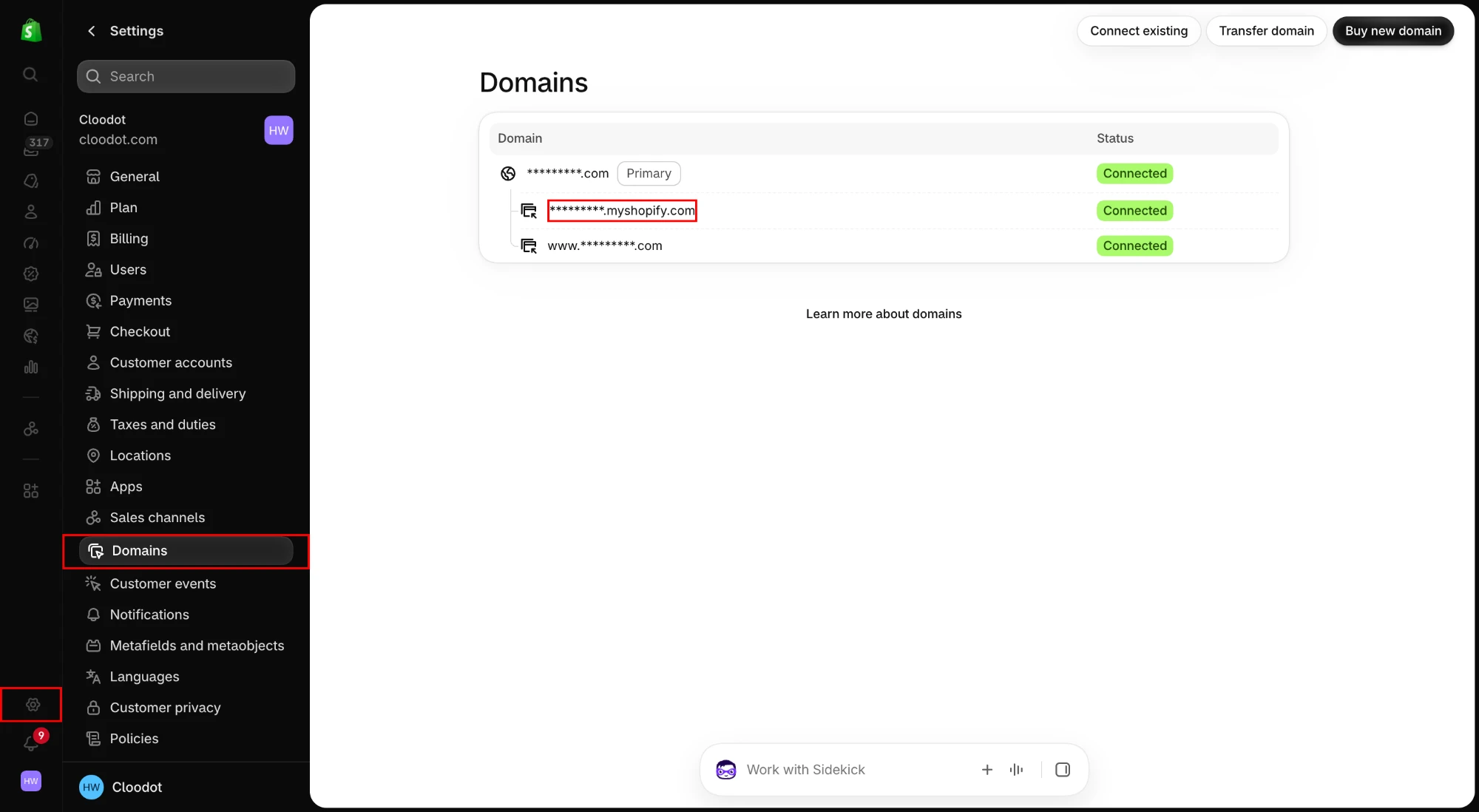
In your Shopify admin, go to Settings → Domains. Copy the address that ends in .myshopify.com. Your custom domain won't work here.
6. Connect the store in Cloodot
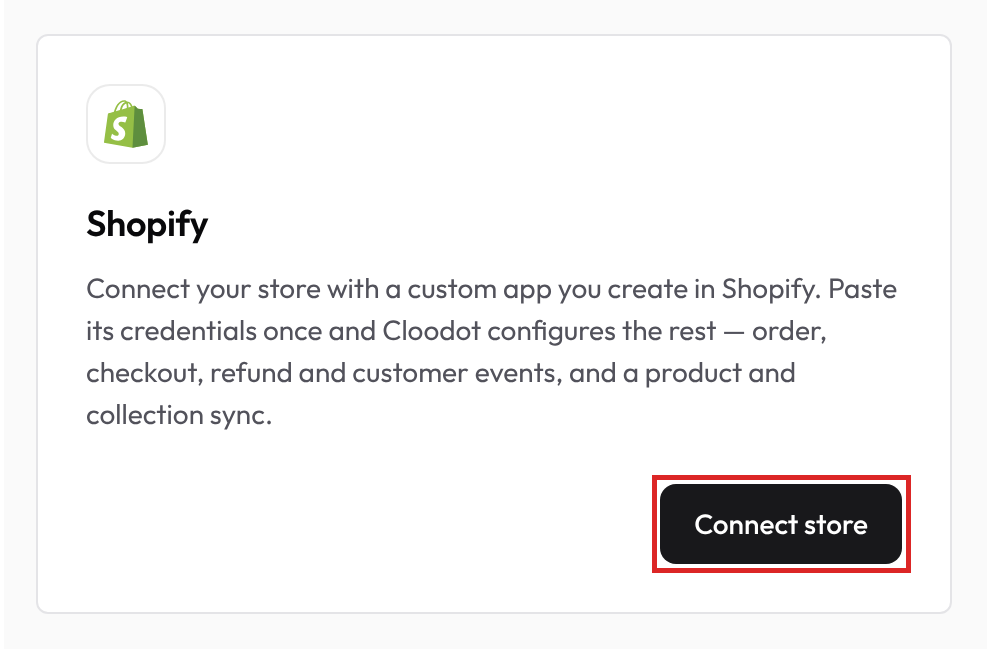
Go to Settings → Integrations and click Connect store on the Shopify card.
Paste the Store domain, Client ID and Client secret, then click Connect store.
The card then lists the events Cloodot receives from your store.
Let the app read customer phone numbers
Shopify treats a customer's name, email, phone number and address as protected customer data. An app that hasn't been given access to a field still receives the order and checkout events, but Shopify leaves that field empty. Phone numbers are the one to watch: without access, {{trigger.customerPhone}} is empty on every order and checkout trigger, even when the shopper typed a number in. A workflow that sends a WhatsApp template to that number then has no one to send to.
To fix it, open the app in the Dev Dashboard and find Protected customer data access. Turn on access to customer data, select Name, Email, Phone and Address, and release a new version of the app. Then open Settings → Integrations, and on the Shopify card click Re-run setup.
How to tell the phone is being withheld
Open a run of a Shopify workflow and expand Trigger data. If the shopper's name and address are there but every phone field under raw is null, including shipping_address.phone, the app doesn't have access to phone numbers.
Add a scope later
If you left a scope out, the Shopify card shows which events are off and the scope that turns them on. Add the scope to the app in the Dev Dashboard and release a new version. Then open Settings → Integrations, and on the Shopify card click Re-run setup.
Use cases
- Order lookup — the AI agent can check order status when customers ask about deliveries.
- Product recommendations — browse the catalog and share product details mid-conversation.
- Customer context — see purchase history and tags when a customer reaches out.
- Inventory checks — verify availability during a conversation.
Workflow examples
Your Shopify store's events can start workflows. Pick a Shopify trigger, then add the steps that follow it, such as sending a WhatsApp template or assigning the conversation.
| Trigger | Example workflow |
|---|---|
| Shopify · Order placed | Send an order confirmation with the order number, items and total. |
| Shopify · Order paid | Confirm payment when it's captured after checkout, for example on orders paid by invoice or bank transfer. |
| Shopify · Shipment shipped | Send a "your order is on the way" message with the carrier and tracking link. Fires once per package. |
| Shopify · Out for delivery | Let the customer know the package arrives today. |
| Shopify · Delivery failed | Tell the customer the carrier missed them and how to rearrange delivery, then assign the conversation to your support team. |
| Shopify · Order delivered | Send a thank-you once every package has arrived. Add a delay of a few days and follow up with a review request. |
| Shopify · Order cancelled | Confirm the cancellation and when the refund will reach the customer. |
| Shopify · Refund issued | Confirm the refund amount. |
| Shopify · Cart abandoned | Remind the shopper about the items left in their cart. See Recover abandoned carts. |
| Shopify · Customer created | Welcome new customers and add a label to their contact. |
Messages sent outside a customer's 24-hour WhatsApp window need an approved WhatsApp template. For what each trigger sends to a workflow and when it fires, see Shopify triggers.
Disconnect
- Go to Settings → Integrations.
- Click the Shopify card.
- Click Disconnect and confirm.
Related topics
- Integrations Overview — manage all integrations
- Collections — import product collections for the AI agent
- Skill Sets — build skills that use Shopify data