Trigger nodes
The events that start a workflow — one per workflow — and the variables each one hands to the steps that follow.
Every workflow starts with exactly one trigger — the event that kicks it off. When the event happens, the trigger fires the workflow and hands the rest of the steps a bundle of data about what just happened. You reach that data downstream with {{trigger.<field>}} templates (see Using variables).
Conversation context
Some triggers fire on a conversation — a new message, a resolution, a star. These carry a conversationId, so any conversation-scoped action (Send Message, Add Label, Assign…) works straight away.
Other triggers aren't tied to a conversation — an Incoming Webhook, a Contact Stage Changed event, or a Workflow Error. Under those, conversation actions have nothing to act on unless an earlier step supplies one (for example Send WhatsApp Template to a phone number creates a conversation, and Find Contact resolves a contact). Each trigger below notes whether it carries a conversation.
Fields every conversation trigger provides
When a trigger carries a conversation, these variables are always available on every step that follows:
{{trigger.conversationId}} · {{trigger.conversationStatus}} · {{trigger.conversationChannel}} · {{trigger.conversationLabels}} · {{trigger.conversationStarred}} · {{trigger.messageText}} · {{trigger.assignedUserId}} · {{trigger.assignedPersonaId}} · {{trigger.contactId}} · {{trigger.contactName}} · {{trigger.contactEmail}} · {{trigger.contactPhone}}
Conversation triggers
New Conversation
Fires when a brand-new conversation is created — the first inbound message on any channel. The most common starting point: welcome the customer, route them, or triage with AI.
When the customer opened the chat by tapping a Click-to-WhatsApp, Click-to-Messenger or Click-to-Instagram ad, the trigger also carries that ad, so you can greet ad leads differently or route a particular ad's leads to its own team. It only sees brand-new conversations: a returning customer who taps an ad continues their existing conversation, which doesn't fire this trigger.
-
Carries a conversation: Yes
-
Key variables: the shared conversation fields above, plus:
{{trigger.fromAd}}—truewhen the conversation started from an ad,falseotherwise{{trigger.ad.adId}}— the Meta ad id, as shown in Ads Manager{{trigger.ad.headline}}·{{trigger.ad.body}}— the ad's headline and copy (body on Click-to-WhatsApp ads only){{trigger.ad.ref}}— the customrefparameter set on a Click-to-Messenger or Instagram ad{{trigger.ad.ctwaClid}}— the Click-to-WhatsApp click id{{trigger.ad.sourceType}}—ad, orpostfor a boosted post ·{{trigger.ad.sourceUrl}}— link to the ad or post{{trigger.ad.platform}}— best guess at where the ad ran, read from its link:FACEBOOK,INSTAGRAM,WHATSAPPorUNKNOWN
To act on one ad only, add a Decision node with a Variable condition — for example
trigger.ad.adIdequals your ad id, ortrigger.fromAdequalstrue. Meta sends the ad's id but not its campaign or ad set, so a campaign with several ads needs one condition per ad (combine them with OR). Theadfields are empty on a conversation that didn't come from an ad.
Conversation Opened
Fires when a conversation's status changes to Open (for example, a resolved thread that gets a new reply).
- Carries a conversation: Yes
- Loop prevention: the Open Conversation action is hidden under this trigger — reopening on "opened" is a loop.
Conversation Resolved
Fires when a conversation is marked Resolved. Great for post-resolution follow-ups, satisfaction surveys, or advancing a contact's pipeline stage.
- Carries a conversation: Yes
- Loop prevention: the Resolve Conversation action is hidden under this trigger.
Conversation Starred
Fires when a conversation is starred.
- Carries a conversation: Yes
- Loop prevention: the Star Conversation action is hidden under this trigger.
WhatsApp Flow Submitted
Fires when a customer completes and submits a WhatsApp Flow — a native in-chat form (booking, lead capture, survey). The answers arrive as variables you can branch on and reuse. See WhatsApp Flows.
- Carries a conversation: Yes
- Key variables:
{{trigger.flowValues.<field>}}— the submitted answers, keyed by field name (e.g.{{trigger.flowValues.km_range}}). Match on them with a Decision node's Variable condition.{{trigger.flowToken}}— the token stamped on the outbound send and echoed back{{trigger.flowSource}}— where the flow was sent from (oneoff,campaign,workflow,sample,api){{trigger.campaignId}}— set when a campaign sent the flow{{trigger.templateName}}— the template whose button opened the flow, when known
Because every flow asks different questions, flowValues can't be listed ahead of time. Open the trigger and Select a flow — Cloodot reads the answer fields straight out of that flow's design, and they become {{trigger.flowValues.…}} suggestions in every later step. Picking a flow only names the fields; the trigger still fires for every flow, so branch on an answer with a Decision node if a workflow should serve one flow only.
Story Reply Received
Fires when a customer replies to your Instagram or Facebook story. The reply lands in the inbox as a message in their conversation, and the run carries that conversation.
- Carries a conversation: Yes
- Channels: Instagram and Facebook Messenger
- Key variables:
{{trigger.messageText}}— what the customer wrote{{trigger.storyMediaUrl}}— a link to the story they replied to. It's Meta's own link and stops working once the story expires, so use it in the same run rather than saving it for later.{{trigger.storyId}}— Meta's id for the story{{trigger.storyPlatform}}—instagramorfacebook
Story Mention Received
Fires when a customer mentions your business in their own Instagram or Facebook story. Cloodot saves the image or video when the mention arrives, so the link keeps working after the story is gone.
- Carries a conversation: Yes
- Channels: Instagram and Facebook Messenger
- Key variables:
{{trigger.storyMediaUrl}}— the customer's story image or video{{trigger.storyMediaType}}—imageorvideo{{trigger.storyPlatform}}—instagramorfacebook
Bind {{trigger.storyMediaUrl}} to an AI step's media input to have the AI look at the story, for example to check whether it shows your product before you send a thank-you.
Routing triggers
AI Agent Assigned
Fires when an AI persona is assigned to a conversation. Use it to set up context the moment AI takes over.
- Carries a conversation: Yes
- Key variable:
{{trigger.personaVersionId}}— the assigned AI persona version
This fires on most new conversations
Cloodot auto-assigns a default persona to new conversations, and that automatic assignment fires this trigger too — so a workflow here runs on nearly every new conversation, not only when a persona is assigned by hand. See Workflows and the built-in AI agent.
Human Agent Assigned
Fires when a team member is assigned to a conversation — for notifications, logging, or SLA timers.
- Carries a conversation: Yes
- Key variable:
{{trigger.userId}}— the assigned user
AI trigger
AI Agent Skill
Fires when the AI agent calls this workflow as a skill during a conversation — not on an event, but because the agent decided this was the thing to do, with the arguments it filled in. The trigger node's fields are the skill the agent can use: its name, the description that tells the agent when to use it, and the arguments it fills. Full guide: AI agent skills.
- Carries a conversation: Yes — the agent only ever calls a skill from inside a conversation it's handling, so conversation actions work with nothing extra.
- Key variables:
{{trigger.input.<name>}}— the arguments the agent passed, one per row you declared (e.g.{{trigger.input.orderId}}). They appear in the Variables picker by name the moment you add them.{{trigger.skillName}}— the skill's own name
- Configured on the trigger: Skill name (3–48 characters, lowercase letters, numbers and underscores, starting with a letter — offered to the agent as
flow_<name>), When should the agent use this? (≤1,000 characters), Arguments (up to 10, eachstring,numberorboolean), and Wait for a reply to the agent with a Give up after budget of 3–60 seconds. - Answering: a Reply to Agent step hands the agent a result without ending the run — the steps after it keep going. That step only works under this trigger.
A draft is not a tool
The agent is only offered workflows that are Active, and a skill name has to be unique among your active workflows. Publish it, or nothing can call it.
Label triggers
Label Added
Fires when a label is added to a conversation. A label makes a clean signal — tag something manually or with AI, and let this trigger do the rest.
- Carries a conversation: Yes
- Key variable:
{{trigger.labelIds}}— the label IDs that were added - Loop prevention: the Add Label action is hidden under this trigger.
Label Removed
Fires when a label is removed from a conversation.
- Carries a conversation: Yes
- Key variable:
{{trigger.labelIds}}— the label IDs that were removed - Loop prevention: the Remove Label action is hidden under this trigger.
CRM triggers
Contact Stage Changed
Fires when a contact's lifecycle stage changes in your pipeline — for example, moving from New to Qualified. Use it to run a playbook every time a contact reaches a stage.
- Carries a conversation: No — a stage change isn't tied to a conversation. Conversation actions need a conversation supplied by an earlier step (e.g. Send WhatsApp Template to
{{trigger.contactPhone}}). - Key variables:
{{trigger.contactId}}·{{trigger.contactName}}{{trigger.fromStageId}}·{{trigger.fromStageName}}— the previous stage (absent if the contact had none before){{trigger.toStageId}}·{{trigger.toStageName}}— the new stage
- Loop prevention: the Change Contact Stage action is hidden under this trigger.
Webhook trigger
Incoming Webhook
Fires when an external system POSTs JSON to the workflow's unique URL. This is how you wire Cloodot to any tool that can send a webhook — a store, a form, a CRM, a no-code automation.
- Carries a conversation: No — the payload is free-form JSON.
- Key variables: anything in the posted body, addressed by path —
{{trigger.payload.order.id}},{{trigger.payload.items.0.sku}}, and so on.
Setup, in the trigger's panel:
- The panel shows the endpoint URL and a signing secret. By default every request must be signed (HMAC-SHA256 — the panel shows exactly how).
- If your sender can't sign requests (a simple script or no-code tool), switch off Require signed requests. Anyone who knows the URL can then trigger the workflow, so treat the URL like a password.
- Use Listen for a request in the Sample event section to capture one real request — it works before the workflow is published. The captured fields then show up as variable suggestions on every later step, and dry runs are prefilled with them. The first real event is captured automatically if you never listen.
When the sender signs in its own scheme
Services like Razorpay, Stripe, AfterShip, Cal.com, and ShipRocket sign their webhooks in their own dialect — you can't teach them Cloodot's. The How does the sender sign? picker in the trigger panel switches verification to the provider's scheme; requests are then checked exactly the way that provider signs them, and the Cloodot signing headers stop mattering.
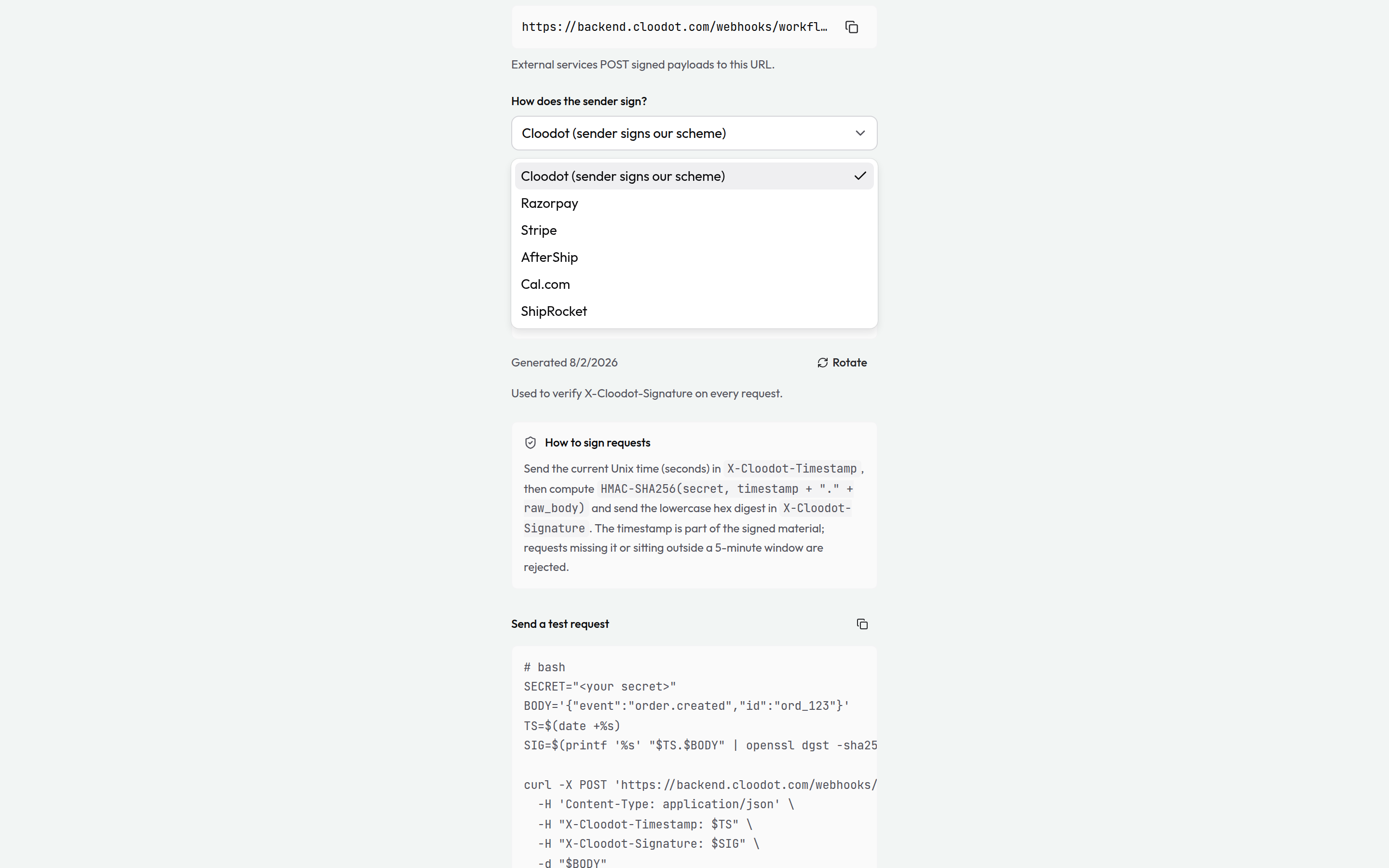
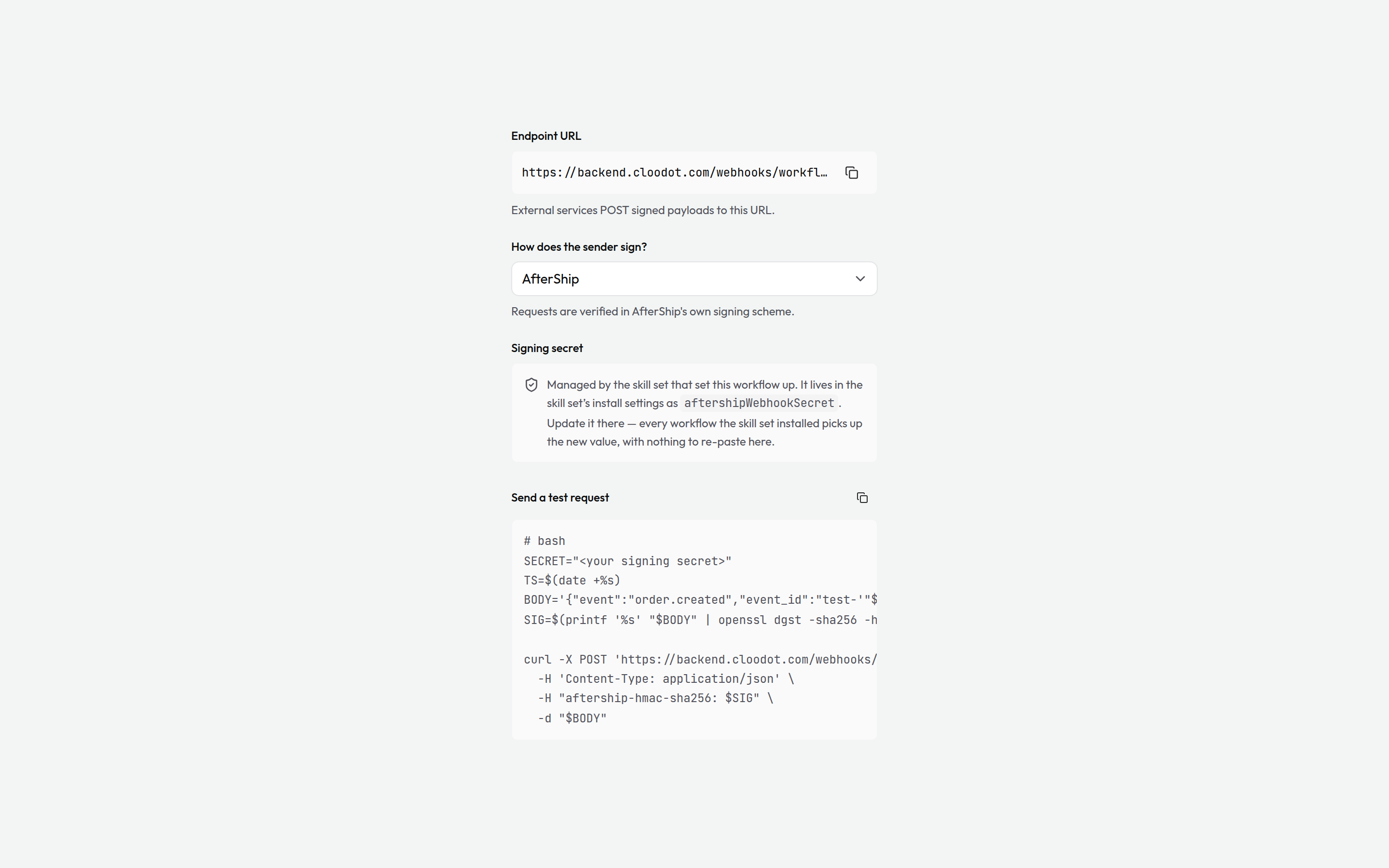
Picking a scheme changes three things in the panel:
- The signing secret becomes the provider's — paste the secret the provider shows you when you create the webhook in their dashboard. If the workflow was installed by a skill set, the secret lives in that skill set's install settings instead, and the panel says so: update it there and every workflow the skill set installed picks up the new value.
- The test request re-templates to the picked scheme — the right header, digest, and signed material for that provider, ready to paste into a terminal. Schemes that sign a timestamp get one; schemes with a delivery id get a fresh one per run, so a repeated test is never mistaken for a duplicate delivery.
- Duplicate deliveries are suppressed. Providers redeliver on any hiccup; when the scheme carries a delivery id, a redelivered event runs once, not twice — for seven days per id.
Verification always fails closed: a request that doesn't verify — wrong signature, unresolvable secret — is rejected without a reason in the response, and nothing runs.
Shopify triggers
Cart Abandoned
Fires when a shopper who started checkout — and gave an email or phone number — leaves it untouched for the wait you set, without placing an order. Built for recovery nudges: each workflow runs at most once per checkout, and never after the shopper buys.
- Carries a conversation: No — most shoppers who abandon a checkout have never messaged you.
{{trigger.conversationId}}is filled in when the shopper is already a contact with a conversation; otherwise reach them with Send WhatsApp Template to{{trigger.customerPhone}}. - Key variables:
{{trigger.recoveryUrl}}(the link back into their checkout, items restored) ·{{trigger.firstName}}·{{trigger.itemsSummary}}·{{trigger.totalPrice}}·{{trigger.currency}}·{{trigger.customerPhone}}·{{trigger.customerEmail}}·{{trigger.acceptsMarketing}}·{{trigger.acceptsSmsMarketing}}·{{trigger.lineItems}}·{{trigger.lastActivityAt}}
Setup, in the trigger's panel: set Fire after — how long the checkout must sit untouched, from 15 minutes to 7 days (30 minutes if you don't change it).
How the wait behaves:
- Every checkout change restarts it. A shopper who edits their checkout at 10:00, 10:15, 10:16 and 10:18 gets one nudge, 30 minutes after 10:18 — not four.
- A purchase cancels it — an order from that checkout, or from the same shopper (matched on email or phone) checking out on another device.
- Only their latest checkout counts. If the same shopper leaves a newer checkout — on another device, or because Shopify reissued the one they were in — the older one is dropped, so they hear about their current cart once.
- One workflow per reminder. For a sequence — say 1 hour, 24 hours and 3 days — build one workflow per touch, each with its own wait. A purchase cancels every touch still waiting. Don't chain Delay steps after this trigger: a run already waiting on a Delay isn't cancelled by the purchase.
Needs checkout events from Shopify
Shopify only sends checkout events to a connection that can read orders. If the trigger never fires, open Settings → Integrations → Shopify: a store connected with its own custom app lists the events it receives, and Re-run setup subscribes the checkout events once the app has the read_orders scope.
Not every abandoned checkout has a phone number
The trigger fires for a shopper who gave only an email, so {{trigger.customerPhone}} is sometimes missing. When it is, a Send WhatsApp Template step fails because it has no recipient. This happens for three reasons:
- The shopper left before giving a phone. On Shopify's checkout, the email is saved as soon as it's typed. The phone in the delivery address is saved only with the rest of the address. To collect phone numbers sooner, set Settings → Checkout → Customer contact method in your Shopify admin to Phone number or email.
- Your store doesn't ask for one. Make the delivery phone required in the same checkout settings if you rely on WhatsApp.
- Shopify is withholding it from Cloodot. If the address arrives but the phone is always empty, your custom app needs access to phone numbers. See Let the app read customer phone numbers.
Put a Decision on {{trigger.customerPhone}} exists before the WhatsApp step. Then a checkout with no phone ends the run cleanly instead of failing.
Shipment Shipped · Out for Delivery · Delivery Failed · Order Delivered
Four triggers that follow an order from the warehouse to the doorstep, so you can send the shopper a WhatsApp update at each step — the tracking link when it ships, a heads-up on delivery day, a "we missed you" when the carrier can't drop it off, and a thank-you once it arrives.
- Shipment Shipped fires once per package, when it's shipped with a tracking number or link. An order sent in two boxes fires twice, once for each. A package marked shipped without tracking waits: the trigger fires when the tracking number is added, not before.
- Out for Delivery fires once per package, when the carrier reports it on the truck.
- Delivery Failed fires when the carrier reports a failed delivery attempt or a delivery failure — once per report, so a second missed attempt sends a second message.
- Order Delivered fires once per order, when its last package is delivered. On an order split into several packages, the earlier deliveries don't fire it. A package the shopper collects from a locker or pickup point counts as delivered.
Each one fires at most once for the same package (or order, for Order Delivered), even when Shopify sends the same update more than once.
- Carries a conversation: No —
{{trigger.conversationId}}is filled in when the shopper is already a contact with a conversation. Otherwise reach them with Send WhatsApp Template to{{trigger.customerPhone}}. - Key variables: every order field the other Shopify order triggers provide —
{{trigger.orderName}}·{{trigger.firstName}}·{{trigger.customerPhone}}·{{trigger.itemsSummary}}·{{trigger.orderStatusUrl}}·{{trigger.totalPrice}}— plus the package this update is about:{{trigger.trackingUrl}}— the carrier's tracking page ·{{trigger.trackingNumber}}·{{trigger.trackingCompany}}{{trigger.shipmentName}}— the package, like#1042.1·{{trigger.shipmentStatus}}— the carrier's latest status, likein_transitordelivered- On Out for Delivery, Delivery Failed and Order Delivered:
{{trigger.eventStatus}}(out_for_delivery,attempted_delivery,failure,deliveredorpicked_up) ·{{trigger.eventMessage}}— the carrier's note, when it sends one ·{{trigger.estimatedDeliveryAt}}·{{trigger.happenedAt}}
The tracking fields always describe the package the update is about — on an order shipped in two boxes, each message carries its own box's tracking link.
Needs fulfillment events from Shopify
Shopify only sends shipment updates to a connection that can read fulfillments. Add the read_fulfillments scope to your custom app, then open Settings → Integrations → Shopify and press Re-run setup to subscribe them.
Out for Delivery, Delivery Failed and Order Delivered need carrier tracking
These three fire only when Shopify gets tracking updates from the carrier — a label bought in Shopify, or a carrier Shopify tracks automatically, such as UPS, USPS or FedEx. A tracking number typed in for a carrier Shopify doesn't follow still fires Shipment Shipped, but nothing after it.
Call triggers
These fire on WhatsApp voice calls on your numbers — the calls customers make to you, and the ones your voice agents make with a Start Call step. Each one carries the customer's WhatsApp conversation on that number — found, or started if they've never messaged you — so you can text them, label them or assign them straight away. A workspace with no call workflow never gets a conversation it didn't ask for: the conversation is only started when a workflow is listening.
Every call trigger also provides:
{{trigger.callId}} · {{trigger.direction}} (inbound when the customer called you, outbound when a voice agent called them) · {{trigger.callerPhone}} · {{trigger.callerName}} · {{trigger.channelName}} (your number) · {{trigger.voiceAgentName}} · {{trigger.startedAt}}
On an outbound call, callerPhone and callerName are the person your agent called.
Call Ended
Fires when a call ends, whatever the outcome, after the call summary is written. One workflow can cover every call: add a Decision node on trigger.callOutcome to handle each kind differently.
- Carries a conversation: Yes — the caller's
- Key variables:
{{trigger.callOutcome}}—handled(the agent saw it through),transferred(a teammate picked up),callback(a callback task was left),dropped(the caller hung up before speaking),missed(nobody answered) orfailed(it never connected). A call your agent placed can also endno_answer(they didn't pick up),declined(they turned it down) orno_permission(they hadn't allowed calls from your number){{trigger.summary}}— a few sentences on the call ·{{trigger.transcript}}— the whole call as text, one line per turn{{trigger.durationSeconds}}·{{trigger.endReason}}·{{trigger.language}}·{{trigger.answeredByName}}(when a teammate took it)
Hand {{trigger.transcript}} to AI Extraction to pull out what the caller wanted — an order number, a new pickup time — and act on it. To handle only one direction, add a Decision node on trigger.direction.
Call Missed
Fires when a call to one of your numbers ends without anyone answering — the voice agent was paused, busy or absent, and nobody on the team picked up. A missed call fires Call Ended too, so use one or the other for the same job, not both. Calls your agents place never fire it: one the customer doesn't pick up ends no_answer, on Call Ended.
- Carries a conversation: Yes — the caller's
- Key variables:
{{trigger.endReason}}·{{trigger.endedAt}}
A common recipe: Call Missed → Send WhatsApp Template — "Sorry we missed your call, Megan — reply here and we'll pick it up" → Request Callback.
Call Transferred
Fires the moment a teammate picks up a call in Cloodot, while the call is still going — whether the voice agent handed the caller over or the number rang the team because the agent couldn't take it.
- Carries a conversation: Yes — the caller's
- Key variables:
{{trigger.answeredByName}}·{{trigger.answeredByMemberId}}·{{trigger.transferReason}}(transferorfallback) ·{{trigger.transferredAt}}
Callback Requested
Fires when a call leaves a callback task in the inbox — the caller asked for a person and nobody picked up, or the call ran out of time.
- Carries a conversation: Yes — the caller's
- Key variable:
{{trigger.callbackSummary}}— what the task says - Loop prevention: the Request Callback action is hidden under this trigger.
System trigger
Workflow Error
Runs when another workflow fails for good (after all its retries). Build an error handler once — alert a channel, log to an external service — and point other workflows at it under their execution settings.
- Carries a conversation: Not guaranteed — error handlers must work for non-conversation workflows too.
{{trigger.conversationId}}is present only when the failed run had one. - Key variables:
{{trigger.failedWorkflowName}}·{{trigger.failedWorkflowId}}·{{trigger.error}}·{{trigger.failedRunNumber}}·{{trigger.failedExecutionId}}·{{trigger.failedAt}}·{{trigger.retryCount}}
Error workflows never cascade
A Workflow Error trigger never fires because of another error workflow — so a broken alert can't set off an infinite chain.
Related
Workflows
Automate your conversation management with visual, drag-and-drop workflows that trigger on events and take action automatically.
Action nodes
The steps that do the work — send messages, manage conversations, route, apply AI, and keep your CRM in sync — with the parameters and outputs of each.