Who can see a channel
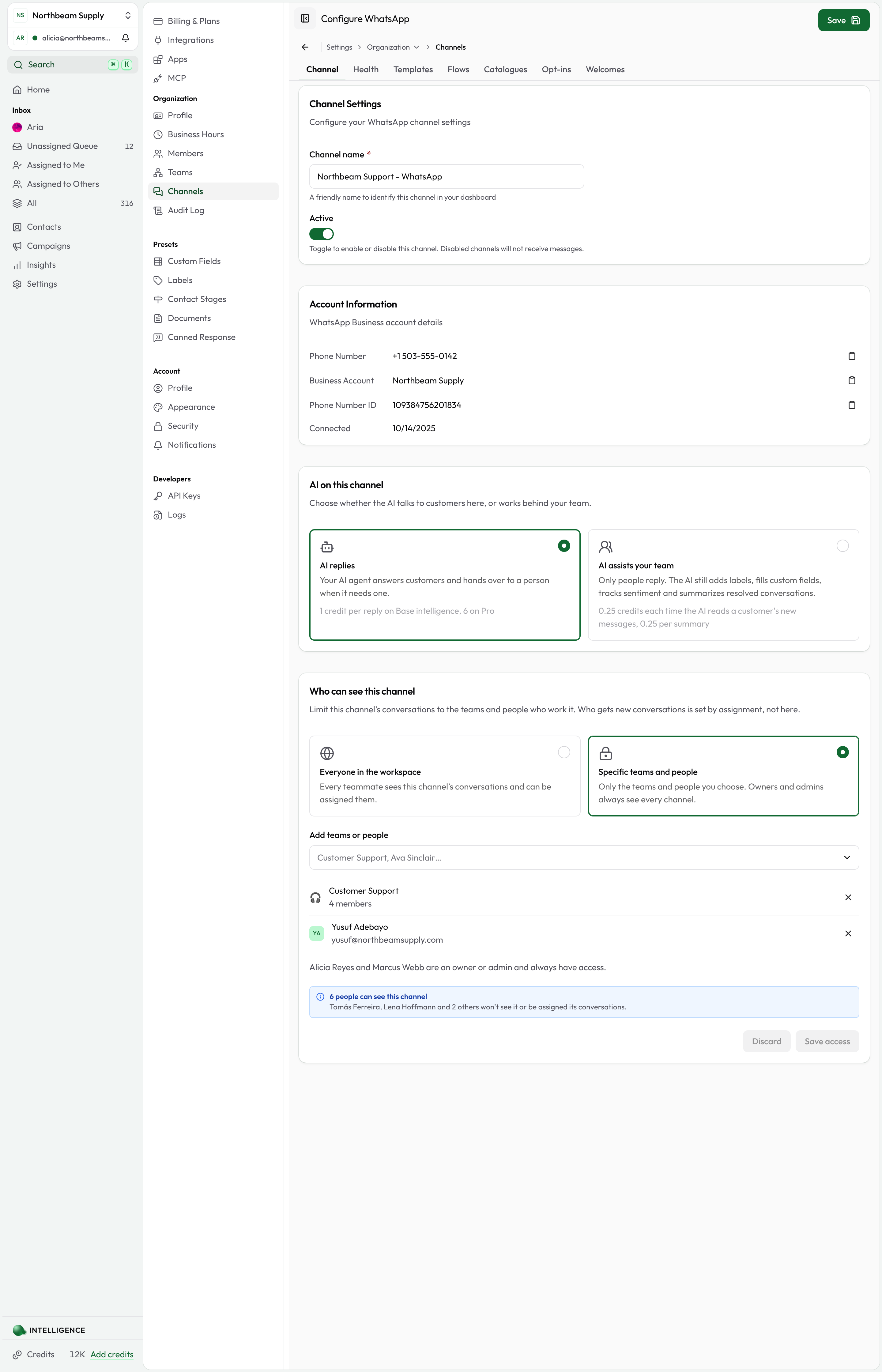
Limit a channel's conversations to the teams and teammates who work it. Owners and admins always see every channel.
By default, everyone in your workspace sees every channel's conversations and can be assigned them. When a channel belongs to one part of your business, such as a Sales number or a store's own WhatsApp line, you can limit it to the teams and teammates who work it.
This setting is rolling out to workspaces gradually. If you don't see Who can see this channel on a channel's settings page, it isn't turned on for your workspace yet. Ask us at support@cloodot.com.
Who can change it
This is an owner and admin setting. Members don't see Who can see this channel on a channel's settings page.
Owners and admins always see every channel, whatever it's set to, so no one can lock the workspace out of its own customers.
Limit a channel to specific teams and people
- Go to Settings → Organization → Channels and open the channel.
- Under Who can see this channel, choose Specific teams and people.
- In Add teams or people, search for a team or a teammate and select it. Repeat for everyone who should work the channel.
- Check the summary underneath. It says how many people can see the channel and names who won't.
- Click Save access.
If anyone loses access, Cloodot asks you to confirm first. The confirmation names who loses access and what happens to the conversations they hold.
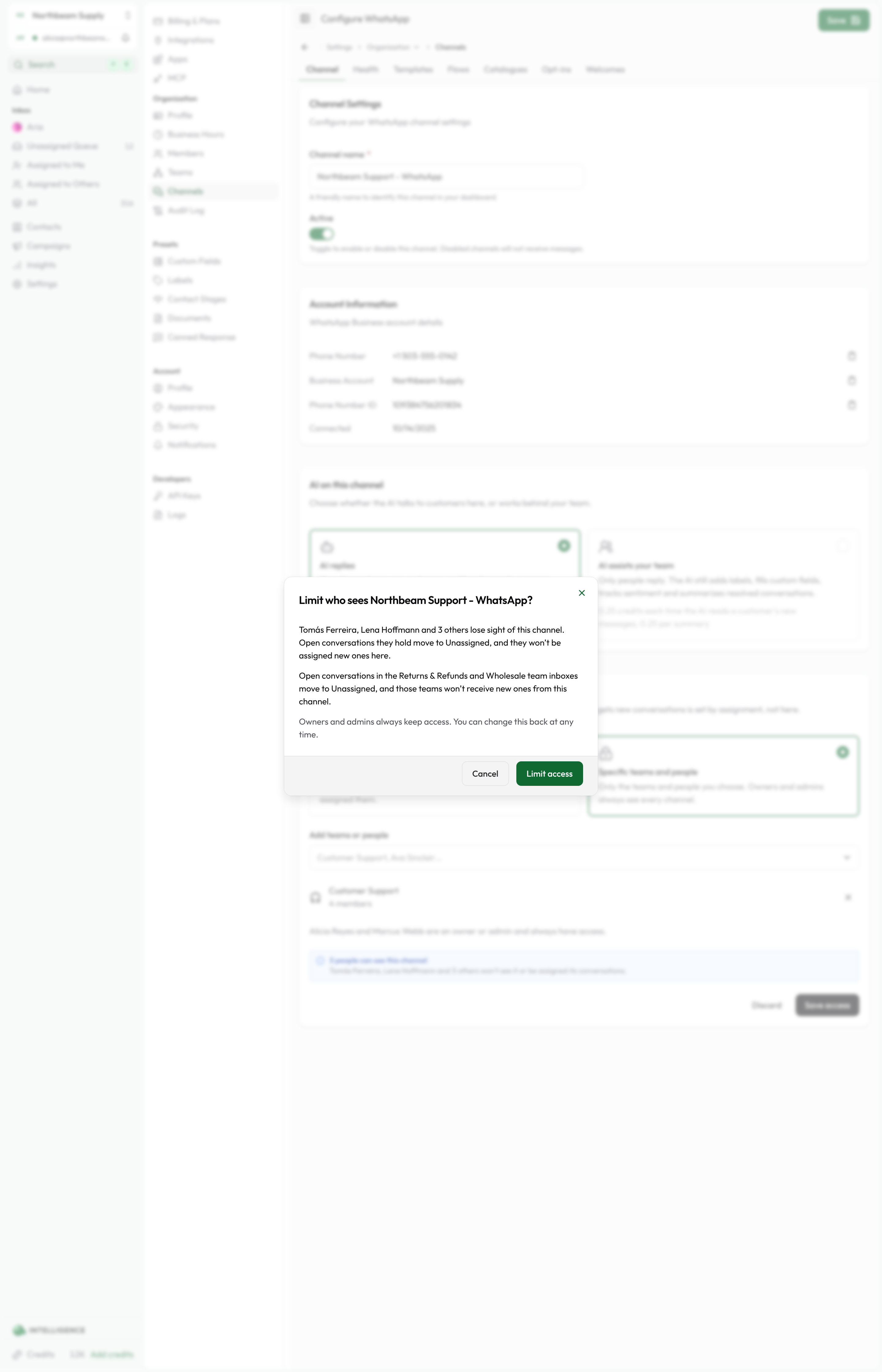
To remove a team or teammate, click the × beside them, then Save access.
Choosing a team gives access to everyone in it, including people who join the team later. When someone leaves the team, they lose access, unless you also added them by name. Manage who's in each team on the Teams page.
To open a channel to everyone again, choose Everyone in the workspace and click Save access.
Keep a channel to the person who connected it
Choose Only me to keep a channel to the teammate who connected it, such as someone's own email inbox. If someone else connected the channel, the option shows their name instead. Owners and admins still see it, and no team inbox receives its conversations. Click Save access to apply it.
The option isn't available when Cloodot doesn't know who connected the channel. If that teammate leaves the workspace, only owners and admins see the channel.
What changes for people without access
A teammate who can't see a channel:
- doesn't see its conversations in any inbox view, or in the counts beside them;
- gets "not found" if they open a link to one of its conversations;
- isn't notified about its new messages, and isn't rung for its calls;
- can't be assigned its conversations, whether by a person, a workflow, auto-assignment, your AI agent or the API.
When you save, open conversations held by someone who just lost access go back to the Unassigned Queue. So do conversations routed to a team that lost access. People who still have access can pick them up there. Resolved conversations aren't moved.
The same happens when someone loses access another way: they're removed from a team that has access, that team is deleted, or an admin is made a member. If they have one of the channel's conversations open at the time, it stops updating within about 30 seconds.
Assigning conversations on a limited channel
In the assign menu, teammates and teams without access are listed separately under No access to this channel, with the reason. Selecting one of them doesn't assign the conversation; Cloodot explains why instead.
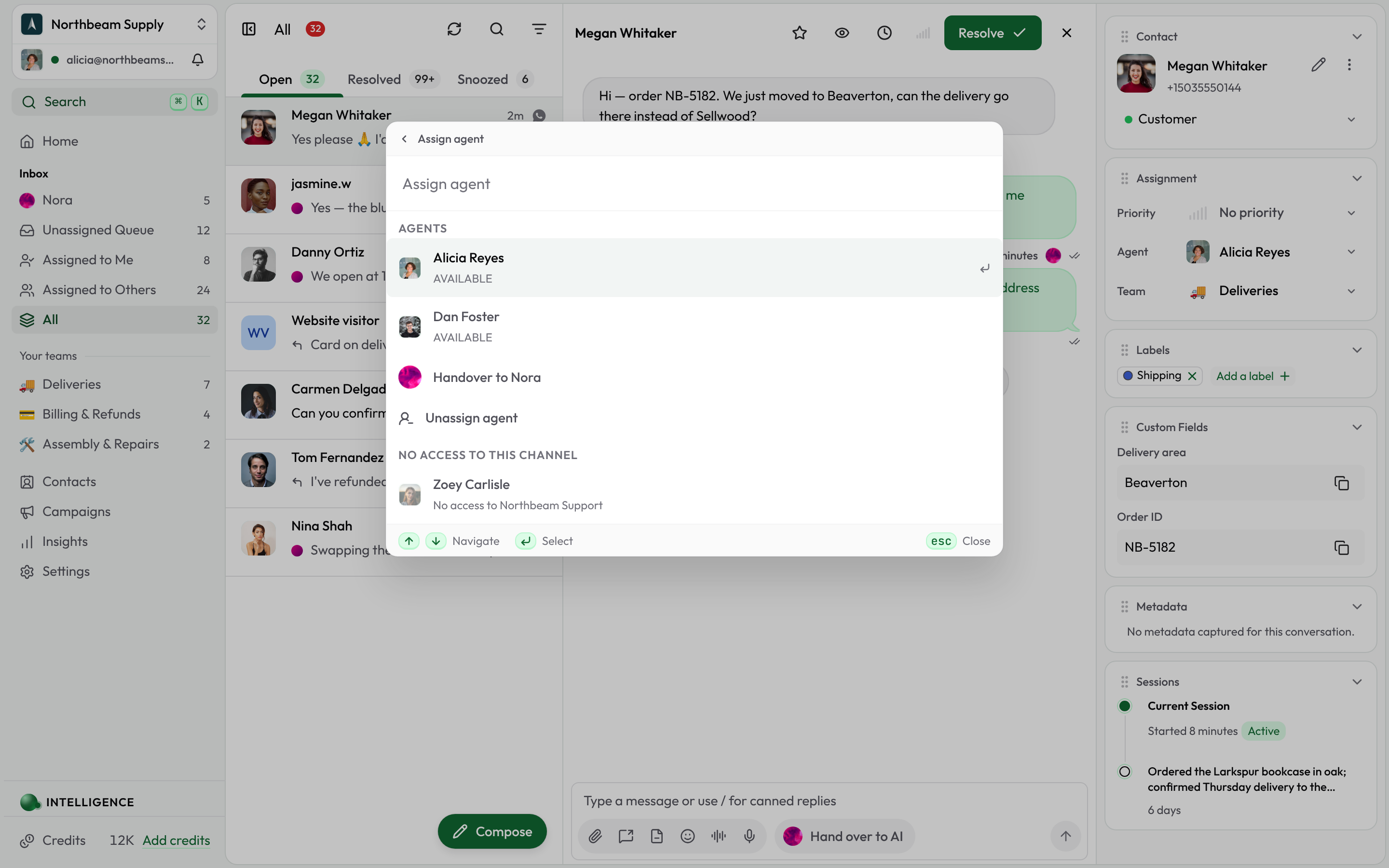
To route a channel's conversations to a team, give that team access. A teammate you added by name doesn't make their whole team eligible, because the team inbox would show the conversation to everyone in it.
How your AI agent hands over
When your AI agent hands a conversation to a person, it only picks teams and teammates who can see the channel. If the team or teammate a procedure names doesn't have access, the agent moves on to the next fallback. If no fallback has access either, the conversation goes to the Unassigned Queue, which only people with access can see. The customer is still told someone will be with them.
Who can see this, and who gets new conversations
This setting controls who can see a channel. It doesn't decide who gets its new conversations. That's assignment: your AI agent's handover, team inboxes and auto-assignment. They only ever pick from the people allowed to see the channel.
So a channel can be visible to two teams while new conversations go to one of them. For example, Support can cover the Sales line over lunch without receiving Sales chats by default.
Related topics
- Teams: who's in each team, and team inboxes
- Auto-assignment: how conversations are handed out
- Members: roles, including owners and admins