Knowledge Base
Build and manage the source of truth your AI uses to answer customer questions.
Your Knowledge Base is everything your AI agent knows about your business. The more you add, the better it can help your customers.
It's the reference library your agent searches whenever someone asks a question — "What's your return policy?", "How do I track my order?", "Are you open on weekends?" — and pulls answers from.
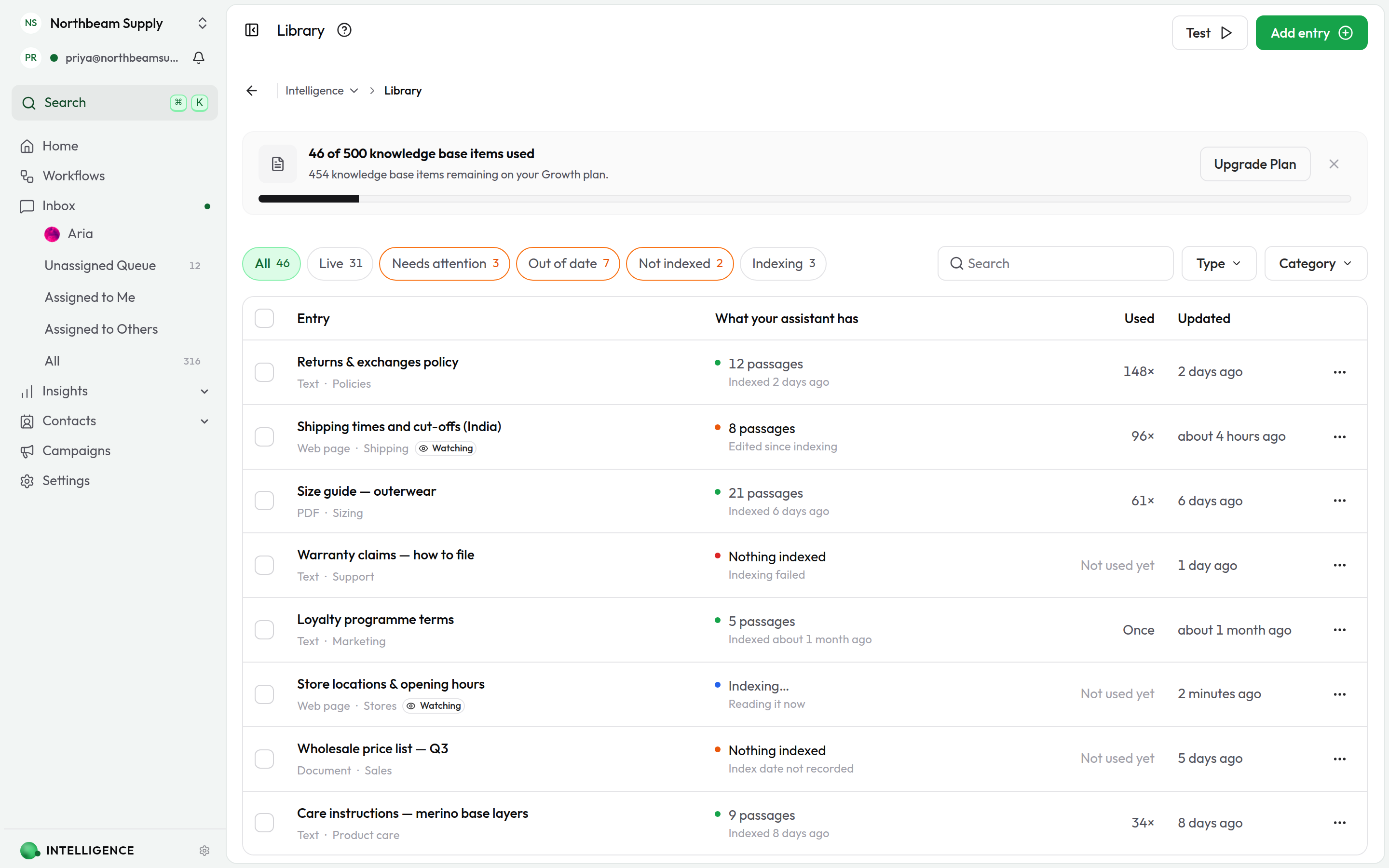
What you can add
- Text — Policies, procedures, product info, anything written
- Files — A PDF, CSV, or Excel file
- Web links — Content from a single web page
- Web crawl — Up to 200 pages from a website at once
Why a strong Knowledge Base matters
With a solid Knowledge Base, your agent can:
- Answer questions about your products and services accurately
- Explain your policies correctly
- Help customers without needing a human
- Give relevant, contextual responses instead of generic ones
Opening the Knowledge Base
Go to Intelligence → Knowledge Base from your dashboard. You'll see everything you've added, plus options to create more.
Adding content
Text
Good for: Policies, procedures, product descriptions, general info.
- Click Add Knowledge.
- Choose Text.
- Give it a title and paste or type your content.
- Save.
Don't hold back on detail. The more you add, the better your agent can answer.
Adding images to a text entry
Use the image button in the editor toolbar to drop a picture into your content — a size chart, a screenshot of the setting a customer needs to find, a diagram of which cable goes where. PNG, JPEG and WebP, up to 5 MB each.
Cloodot reads every image you add: it transcribes the text in the picture and describes what it shows, then indexes that alongside the words around it. So a customer asking "what size is a medium?" can match a size chart you never typed out.
When a customer's question matches the part of your entry that holds an image, your agent sends the picture along with its reply. Showing beats describing — put the picture right next to the step it illustrates.
Files
Good for: Manuals, guides, spreadsheets, detailed documentation.
- Click Add Knowledge.
- Choose File Based.
- Upload a PDF, CSV, or Excel file and give it a title.
- Save.
The file is processed and indexed — give it a moment to finish.
Web links
Good for: Pulling content from your existing website or docs.
- Click Add Knowledge.
- Choose Web Link.
- Paste the URL.
- Give it a title and save.
Cloodot extracts the page content and adds it to your Knowledge Base.
If you already have good information on your website, web links are the fastest way to get it into the Knowledge Base.
Web crawl
Good for: Importing many pages from a site in one go.
- Click Add Knowledge.
- Choose Web Crawl.
- Enter the starting URL. Cloodot imports up to 200 pages from the site.
- Give it a title and save.
A crawl takes longer than a single web link; watch the progress as pages are imported.
Auto-crawl for changes
Web link entries can re-crawl their source URL on a schedule so your Knowledge Base stays in sync with the page. Turn it on for content that changes regularly — pricing, hours, product details, docs, policies.
Turn auto-crawl on
You can enable auto-crawl in two places:
- While adding a Web Link — On the Web Link step of the Add Knowledge dialog, flip the Auto-crawl for changes switch and pick how often to re-crawl.
- From an existing Web Link entry — Open the entry, then toggle the switch in the auto-crawl panel at the top.
Pick an interval
Choose how often Cloodot re-crawls the URL. Minimum is 1 hour; you can pick hours or days, up to a year.
Some starting points:
- 1 day for pricing pages, hours, and policies
- 6–12 hours for fast-moving content like product availability or stock
- 1 week for stable documentation that rarely changes
Change the interval anytime — adjust the value, then click Save.
What each crawl does
On each scheduled run, Cloodot fetches the URL and compares it with what's stored. The panel shows one of these statuses:
- Content updated — The page changed and the entry was refreshed
- No changes — Nothing changed; the entry is already current
- Crawl failed — The page couldn't be reached or read
- Waiting for first crawl — Auto-crawl is on, but the first scheduled run hasn't happened yet
The panel also shows the last crawl time and when the next is due.
Run a crawl right now
Don't want to wait for the next scheduled run? Click Crawl now in the panel header. The entry refreshes in a moment, and the schedule continues from there.
When crawls keep failing
After several failed attempts in a row, Cloodot pauses auto-crawl so it stops hitting an unreachable page. The panel shows the last error and gives you two options:
- Try now — Trigger a one-off crawl to see if the issue is fixed
- Resume auto-crawl — Restart the schedule
Common reasons a crawl fails:
- The URL is behind a login or paywall
- The page has been moved or removed
- The site is temporarily down or rate-limiting requests
- The URL returns a non-HTML response
Auto-crawl runs in the background. You don't need to keep Cloodot open for it to work.
Spotting auto-crawl in the list
In the Knowledge Base list, web link entries with auto-crawl turned on show a small eye icon next to the WEBLINK type badge. Hover the icon to see the current interval.
Managing entries
Find entries
Use the search bar to find specific entries, or browse the list. Each entry shows its type and processing status.
Edit an entry
Click any entry to view it, then hit the edit (pencil) icon to make changes. Save when you're done.
Delete an entry
Open the entry and click the delete icon. Confirm to delete — once it's gone, your agent no longer has access to that information.
Processing status
After you add something, it needs to be processed before the agent can use it:
- Queued — Waiting in line
- Training — Being processed now
- Trained — Ready to use
- Failed — Something went wrong (open the entry for details)
How your AI agent uses the Knowledge Base
When a customer asks a question, the agent:
- Figures out what they're asking
- Searches your Knowledge Base for relevant info
- Pulls out the useful bits
- Crafts a response
Search is semantic, not keyword-based — it understands meaning. So "refund policy" and "how do I get my money back" find the same content.
Tips for better results
Make content easy to find
- Use clear, descriptive titles
- Write in natural language (the way customers ask)
- Be specific and detailed
Keep it fresh
- Update entries when things change
- Delete outdated info
- Review periodically
- For web links, turn on auto-crawl to keep pages in sync automatically
Pick the right format
- Text — Quickest for policies and procedures
- Files — PDFs, CSVs, or Excel for existing documentation
- Web links — Pull in a single web page
- Web crawl — Import many pages from a site at once
Troubleshooting
Agent isn't finding the info
Check that the entry's status is "Trained". Then:
- Make sure the content matches the questions being asked
- Add more detail if the info is too sparse
Processing failed
For files: verify the file is a valid PDF, CSV, or Excel file and not corrupted.
For web links: check that the URL is accessible and not behind a login.
If it still won't process, re-upload or reach out to support.
Outdated answers
Find the relevant entry and update it, or delete it. For web links, auto-crawl keeps them current without manual updates.
Auto-crawl is paused
Cloodot pauses auto-crawl after several failed attempts in a row. Open the entry to see the last error. Check that the URL still works in a browser, then click Try now to retest. If it succeeds, click Resume auto-crawl to restart the schedule.
Related
- AI Agent Configuration — Control how your agent uses knowledge
- Skill Sets — Skills can reference your Knowledge Base
- Documents — Additional file storage
- MCP Servers — Connect external knowledge sources
What's next?
- Create FAQs — Quick answers for common questions
- Configure your AI Agent — Put the knowledge to use
- Test in the playground to see how the agent responds
- Watch real conversations to spot knowledge gaps
Ready to add FAQs? Create your first FAQ.